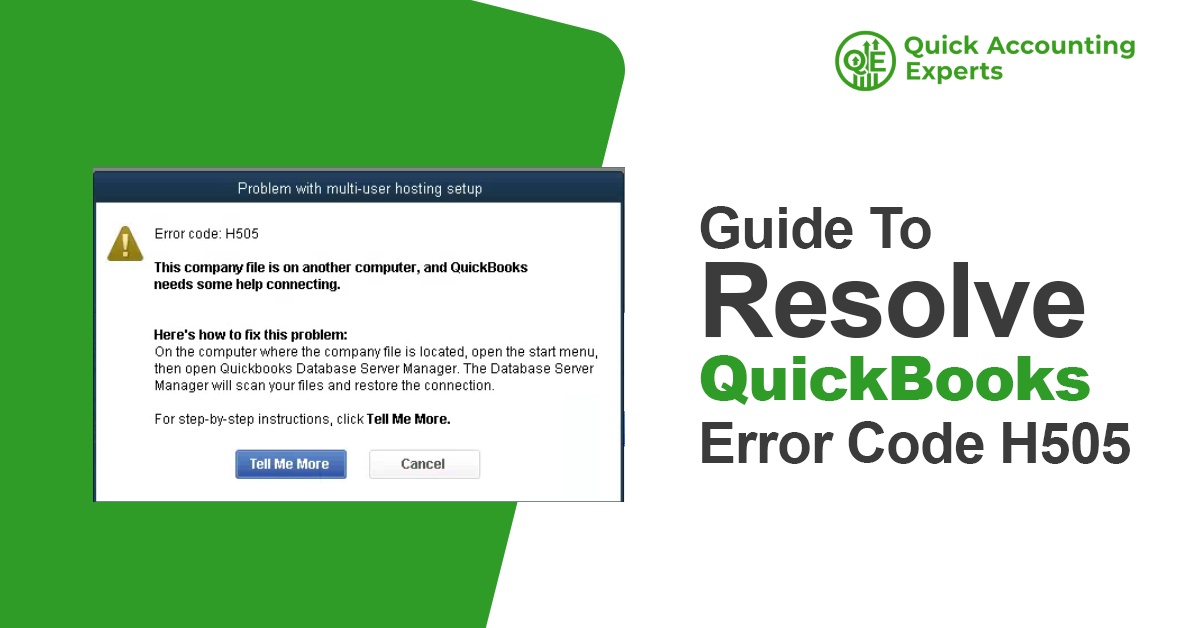
QuickBooks is built to simplify accounting, not complicate it. However, when multiple users need access to the same company file over a network, things don’t always go as planned. One of the most frustrating problems QuickBooks users encounter in multi-user mode is Error Code H505.
If you’ve landed here because you’re staring at an error message that won’t let you open your company file, take a deep breath—you’re in the right place. This issue is common, well-documented, and in most cases, completely fixable without advanced technical skills.
In this guide, we’ll break down what QuickBooks Error H505 really means, why it happens, how to fix it step by step, and what you can do to prevent it from happening again. No jargon overload, no unnecessary panic—just clear guidance.
Understanding QuickBooks Error Code H505
QuickBooks Error H505 belongs to the H-series errors, which are all related to problems in multi-user mode. Specifically, H505 occurs when a workstation (client computer) tries to open a company file stored on another system (usually a server), but QuickBooks fails to establish a network connection.
In simple terms:
Your computer is asking, “Hey, can I access that file?”
The server isn’t answering properly.
When this happens, QuickBooks typically displays a message similar to:
“This company file is on another computer, and QuickBooks needs some help connecting.”
This message is your clue that QuickBooks can’t communicate with the system hosting the company file.
Common Signs You’re Dealing with Error H505
Sometimes the error message is obvious. Other times, the problem shows up through performance issues. Here are the most common symptoms associated with Error H505:
QuickBooks refuses to switch to multi-user mode
Workstations can’t open the company file
QuickBooks freezes or becomes unusually slow
Network-based access suddenly stops working
Error H505 repeatedly appears on screen
If several of these symptoms sound familiar, there’s a strong chance Error H505 is the culprit.
Why Does QuickBooks Error H505 Occur?
To fix the problem effectively, it helps to understand what causes it. Error H505 usually comes down to network miscommunication. Below are the most frequent reasons this error appears.
1. Hosting Settings Are Incorrect
QuickBooks works best when only one system—the server—is hosting the company file. If multiple computers are set to host, QuickBooks gets confused and fails to connect.
2. Firewall or Security Software Is Blocking Access
Firewalls are designed to protect your system, but sometimes they block QuickBooks ports and services that are essential for network communication.
3. Network or DNS Configuration Problems
If your workstation can’t properly identify or locate the server due to DNS or network issues, Error H505 can occur.
4. QuickBooks Services Aren’t Running
Key services such as QuickBooksDBXX and QBCFMonitorService must be running on the server. If they’re stopped or misconfigured, workstations won’t connect.
5. Corrupted or Missing .ND File
The Network Data (.ND) file tells QuickBooks where the company file is located on the network. If this file is damaged or incorrect, QuickBooks loses its roadmap.
What to Confirm Before You Start Troubleshooting
Before jumping into solutions, take a moment to verify these basics. Skipping them can lead to unnecessary frustration.
The company file is stored on one dedicated server
All systems are connected to the same network
QuickBooks is updated to the latest version
You’re logged in with administrator privileges
Once these boxes are checked, you’re ready to move forward.
Solution 1: Review Hosting Settings on Every Computer
Incorrect hosting settings are one of the biggest contributors to Error H505.
Steps:
Open QuickBooks on each workstation (not the server)
Go to File > Utilities
If you see Host Multi-User Access, do not click it
If you see Stop Hosting Multi-User Access, click it
Repeat these steps on all workstations
On the server, confirm that Host Multi-User Access is enabled
This ensures that only the server is responsible for hosting the company file.
Solution 2: Use QuickBooks Database Server Manager
QuickBooks Database Server Manager is designed specifically to fix network-related issues like H505.
Steps:
Log in to the server computer
Open QuickBooks Database Server Manager
Click Scan Folders
Add the folder where the company file is stored
Click Start Scan
Restart QuickBooks after the scan completes
This process rebuilds network configuration files and often resolves the issue immediately.
Solution 3: Check QuickBooks Services on the Server
If the required services aren’t running, workstations won’t be able to communicate with the server.
Steps:
Press Windows + R
Type services.msc and press Enter
Locate:
QuickBooksDBXX
QBCFMonitorService
Make sure both services are:
Running
Set to Automatic startup
Restart the services if necessary
After this, try opening the company file again.
Solution 4: Adjust Firewall Settings
Firewalls can silently block QuickBooks without warning.
What You Can Do:
Add QuickBooks as an exception in your firewall
Allow required QuickBooks ports
Temporarily disable the firewall for testing purposes (turn it back on afterward)
If disabling the firewall resolves the issue, you’ll know the firewall configuration needs correction.
Solution 5: Test Network Connectivity
A simple network issue can trigger Error H505.
Steps:
Open Command Prompt on the workstation
Type: ping [Server Name]
Press Enter
Check for replies without packet loss
If the ping fails, the problem may lie in your network or DNS settings.
Solution 6: Rename the .ND File
A damaged .ND file can prevent QuickBooks from locating the server.
Steps:
Go to the company file folder
Find the file ending in .ND
Right-click and rename it (add .old to the end)
Reopen QuickBooks
Run Database Server Manager again
QuickBooks will automatically generate a new .ND file.
Solution 7: Open the Company File Using the Server’s IP Address
This method bypasses name-resolution problems.
Steps:
Open QuickBooks on the workstation
Click Open or Restore Company
Browse using the server’s IP address
Select and open the company file
If this works, the issue is likely related to DNS or network naming.
When It’s Time to Call a Professional
If you’ve tried every solution and Error H505 still won’t go away, the issue may be more complex than it appears.
At this point, it’s best to:
Contact a certified QuickBooks professional
Consult IT support for deeper network diagnostics
Avoid repeated trial-and-error that could risk data corruption
How to Prevent QuickBooks Error H505 in the Future
A little prevention goes a long way. Follow these best practices to avoid future headaches:
Use a dedicated server for company files
Keep QuickBooks and Windows fully updated
Run regular network health checks
Never store company files on workstations
Perform daily company file backups
These habits significantly reduce the risk of multi-user errors.
Final Thoughts
QuickBooks Error Code H505 may seem intimidating at first, but it’s usually the result of manageable network or configuration issues. With a clear understanding of what causes the error and a step-by-step approach to fixing it, most users can resolve the problem on their own.
The key is ensuring proper hosting setup, stable network communication, and correctly running services. Once those pieces are in place, QuickBooks can return to doing what it does best—helping you manage your business finances smoothly and confidently.
It’s also important to remember that multi-user errors like H505 are often preventable with routine system maintenance. Regularly updating QuickBooks to the latest version, keeping your server and workstations updated, and reviewing firewall or antivirus settings can significantly reduce the likelihood of encountering this issue again. Additionally, verifying that the database server manager is properly configured and scanning your company files periodically can help maintain seamless connectivity across all systems.
If the issue persists despite troubleshooting, seeking guidance from an IT professional or QuickBooks online support team can save time and prevent further disruption. Taking a proactive and informed approach ensures your accounting workflow remains efficient, secure, and interruption-free.