Tag: Quickbooks Error

  • How to Fix it Quickbooks Error H202?

    How to Fix it Quickbooks Error H202?

    How to Fix It QuickBooks Error H202?
    Quickbook Error H202

    QuickBooks is one of the most popular accounting software solutions used by small and medium-sized businesses. It simplifies accounting tasks, manages invoices, tracks expenses, and generates financial reports with ease. However, like any software, QuickBooks isn’t immune to errors. One of the most common issues users face is the QuickBooks Error H202.

    If you’re reading this, chances are your QuickBooks is stuck in multi-user mode, and you’ve encountered an H202 error message. Don’t worry—we’ll guide you through the causes, symptoms, and most importantly, how to fix QuickBooks Error H202 efficiently.


    What is QuickBooks Error H202?


    QuickBooks Error H202 occurs when your QuickBooks Desktop fails to connect to the company file located on another computer (server). It typically happens in multi-user mode, where multiple users access the company file simultaneously.

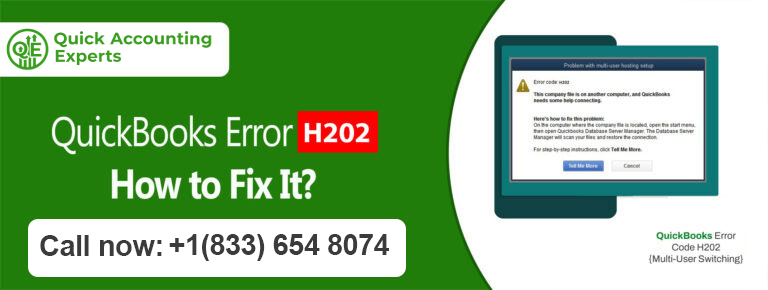
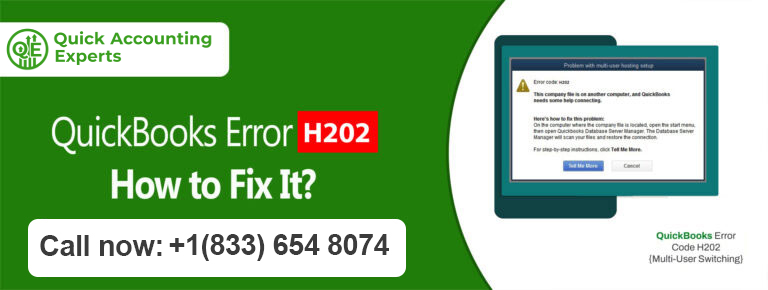
    Error message:

    “QuickBooks is attempting to connect to the company file, but the host computer is not responding. (H202)”

    This error prevents users from accessing the company file and can disrupt accounting operations if not resolved promptly.


    Common Causes of QuickBooks Error H202


    Understanding the cause is crucial before applying solutions. The common reasons for H202 include:

    1. Incorrect Hosting Configuration – If multiple computers are trying to host the company file simultaneously, it can create conflicts.
    2. Firewall or Antivirus Blocking – Firewalls or antivirus software may block QuickBooks ports, preventing proper communication.
    3. Damaged Network Data (.ND) File – Each company file has an associated .ND file that allows multi-user access. If it’s damaged, H202 can occur.
    4. Network Connection Issues – Weak or unstable LAN connections between the server and workstation can trigger H202.
    5. Incorrect IP Address – QuickBooks may fail to connect if the server computer’s IP address has changed.


    Symptoms of QuickBooks Error H202


    Recognizing the signs can help you troubleshoot faster. Symptoms include:

    • QuickBooks cannot switch to multi-user mode.
    • Users see an H202 error popup when trying to access the company file.
    • Slow network performance when accessing QuickBooks.
    • Workstations fail to detect the server hosting the company file.


    How to Fix QuickBooks Error H202: Step-by-Step Solutions


    Here’s a detailed, step-by-step guide to resolve H202, starting from basic solutions to advanced troubleshooting:


    1. Verify Hosting Settings on All Computers


    The first step is to ensure only the server computer is hosting the company file.

    Steps:

    1. Open QuickBooks on each workstation.
    2. Go to File > Utilities.
    3. If you see “Stop Hosting Multi-User Access”, it means this computer is hosting. Only the server should host.
    4. Ensure all workstations (except the server) show “Host Multi-User Access”.

    ✅ This eliminates conflicts caused by multiple hosting attempts.


    2. Check Network Connectivity


    QuickBooks requires stable network connections. Follow these steps:

    • Ping the server computer from the workstation:
      1. Press Windows + R, type cmd, and press Enter.
      2. Type ping [ServerIP] and press Enter. Replace [ServerIP] with the server computer’s IP.
      3. If the ping fails, check LAN cables, switches, or Wi-Fi connections.

    ⚠️ If network connectivity is poor, H202 will persist.


    3. Configure Firewall and Antivirus Settings


    Sometimes, firewalls block QuickBooks from communicating.

    Steps:

    1. Open Control Panel > Windows Defender Firewall > Allow an app or feature through Windows Firewall.
    2. Ensure QuickBooks programs are allowed for private and public networks.
    3. Add the following QuickBooks ports to firewall exceptions:
      • QuickBooks Desktop 2025: 8019, 56728, 55378-55382
    4. For antivirus, create exceptions for QuickBooks folders and executables.

    🔹 Tip: Use the QuickBooks File Doctor Tool which can also detect and fix firewall issues automatically.


    4. Update QuickBooks to the Latest Release


    Outdated QuickBooks software can cause compatibility issues.

    Steps:

    1. Open QuickBooks on all computers.
    2. Go to Help > Update QuickBooks Desktop.
    3. Click Update Now and select Get Updates.
    4. Restart QuickBooks after updates are installed.

    💡 Keeping QuickBooks updated ensures stability and reduces errors like H202.


    5. Rename the .ND and .TLG Files


    .ND (Network Data) and .TLG (Transaction Log) files are crucial for multi-user mode. Renaming them forces QuickBooks to create new files.

    Steps:

    1. Close QuickBooks on all computers.
    2. Navigate to the folder where your company file is stored.
    3. Look for files with the same name as your company file but with extensions .ND and .TLG.
    4. Rename them to [CompanyFileName].ND.OLD and [CompanyFileName].TLG.OLD.
    5. Reopen QuickBooks and try accessing the company file.

    ✅ QuickBooks will automatically generate new .ND and .TLG files.


    6. Use QuickBooks Database Server Manager


    The Database Server Manager scans your network for company files and ensures proper connectivity.

    Steps:

    1. Download and install the latest QuickBooks Database Server Manager.
    2. Open Database Server Manager > Scan Folders.
    3. Add the folder containing your company file.
    4. Click Scan.
    5. Once scanning is complete, try opening QuickBooks in multi-user mode.

    🔹 This step is particularly useful for resolving persistent H202 errors.


    7. Verify the Server’s IP Address


    If the server IP has changed, QuickBooks may fail to connect.

    Steps:

    1. On the server computer, press Windows + R, type cmd, and hit Enter.
    2. Type ipconfig and press Enter. Note the IPv4 Address.
    3. On each workstation, ensure QuickBooks is pointing to the correct server IP when accessing the company file.


    8. Check QuickBooks Services


    QuickBooks relies on certain Windows services:

    1. Press Windows + R, type msc, and press Enter.
    2. Ensure the following services are Running and Startup Type = Automatic:
      • QuickBooksDBXX (XX = version year, e.g., QuickBooksDB26)
      • QBCFMonitorService
    3. If not running, right-click > Start, and set Startup type to Automatic.


    9. Additional Tips to Prevent H202


    • Use a static IP address for your server to avoid IP conflicts.
    • Avoid hosting QuickBooks on multiple computers.
    • Regularly update QuickBooks and Windows for stability.
    • Maintain a reliable local network connection.
    • Backup your company file regularly to prevent data loss.


    Quick Fix: Use QuickBooks File Doctor


    If manual methods seem complicated, QuickBooks provides a File Doctor Tool:

    1. Download the QuickBooks Tool Hub from the official Intuit website.
    2. Open Tool Hub > Company File Issues > Run QuickBooks File Doctor.
    3. Select your company file and choose Check your file.
    4. Follow on-screen instructions to repair H202.

    ⚡ This is a safe, automatic method recommended by Intuit.


    FAQs About QuickBooks Error H202


    Q1. Can H202 cause data loss?
    No, H202 typically affects connectivity, not your company file data. Always back up files before troubleshooting.


    Q2. Is QuickBooks Error H202 only for multi-user mode?
    Yes, H202 appears when QuickBooks cannot connect to the company file over the network in multi-user mode.


    Q3. Can antivirus software trigger H202?
    Yes, firewalls and antivirus software can block QuickBooks ports, causing H202. Configuring exceptions usually fixes the issue.


    Q4. How long does it take to fix H202?
    Depending on the cause, it can take anywhere from a few minutes (for simple settings) to an hour (for network or firewall issues).


    Conclusion


    QuickBooks Error H202 can disrupt your workflow, but it’s fixable with the right steps. By checking hosting settings, configuring firewalls, updating software, renaming .ND files, and using the Database Server Manager, you can restore multi-user access efficiently.

    Remember to maintain proper network configurations, update QuickBooks regularly, and use static IPs for servers to prevent H202 in the future.

    ⚠️ Pro Tip: If troubleshooting manually seems overwhelming, the QuickBooks File Doctor Tool is your fastest way to resolve H202 safely.

     

  • How to Fix It QuickBooks Error 6123?

    How to Fix It QuickBooks Error 6123?

    Quickbooks Error 6123

    How to Fix It QuickBooks Error 6123?

    QuickBooks stands as a highly regarded accounting solution for small to mid-sized enterprises. Nevertheless, even this dependable application can occasionally encounter snags. A very frequent—and annoying—difficulty encountered is QuickBooks Error 6123.

    This particular error typically surfaces when QuickBooks is unable to launch, recover, or update your business data file. Encountering this message can halt your productivity, postpone crucial monetary operations, and leave you puzzled about the source of the trouble.

    Take heart—this resource will cover all essential details: the underlying reasons for the error, methods for resolution, and advice on averting recurrence.

    1. What Is QuickBooks Error 6123?

    QuickBooks Error 6123 emerges if the application fails to link up with your business data file. You could encounter prompts such as:

    • QuickBooks is unable to reach the company file
    • The link to the QuickBooks company file terminated

    This commonly occurs with files residing on a separate machine, a network server, or when updates are in progress. This issue might surface in QuickBooks Desktop Pro, Premier, or Enterprise versions.

    2. When Does This Error Happen?

    You may encounter Error 6123 during various operations, including:
    • Accessing a business file located on a network server or a different machine
    • Reverting to a prior version of your business file from a backup
    • Updating your business file to a more recent release
    • Moving between solo operation and shared access modes
    • Following a Windows system update
    Understanding the context of when this error occurs can expedite the process of diagnosing the root issue.

    3. Common-Causes-of-QuickBooks-Error-6123

    Issuies problems might spark this error. The common culprits are:

    1. Corrupted Company File

    Should your firm’s data file suffer damage or corruption, QuickBooks will be unable to load it. This frequently causes Error 6123.

    2. Network or Hosting Issues

    Should you be employing QuickBooks in a shared user environment, improper hosting arrangements or corrupted network data files (specifically .ND files) might prevent entry to your business data file.

    3. Antivirus or Firewall Blocking

    Sometimes security software blocks QuickBooks from accessing your company file. Firewalls or antivirus programs can interfere with QuickBooks communication.

    4. Folder Permissions

    If the folder containing your company file doesn’t have the right permissions, QuickBooks won’t be able to read or write data.


    5. Database Server Manager Problems

    The QuickBooks Database Server Manager helps multi-user setups work properly. If it’s outdated or not running, QuickBooks can’t connect to the file.


    6. Windows Permissions

    QuickBooks needs proper Windows admin rights to open files. If your user account doesn’t have these permissions, Error 6123 can appear.


    7. Corrupted QuickBooks Installation

    If QuickBooks wasn’t installed properly, the program itself may cause connection errors or file access issues.


    4. Symptoms You Might Notice

    Before the error pops up, you might notice:

    • QuickBooks crashes when opening a file
    • The software freezes or responds slowly
    • Trouble switching to multi-user mode
    • Network disconnection errors
    • Unexpected QuickBooks shutdowns

    If you see any of these, it’s a warning that QuickBooks might have trouble accessing your company file.

    5. How to Fix QuickBooks Error 6123 Quickly

    1. Restart QuickBooks and Your Computer

    Sometimes, the error is temporary. Close QuickBooks completely, restart your computer, and then try opening your company file again.


    2. Move the Company File to Your Desktop

    Accessing the file over a network can sometimes trigger the error. Try moving the file to a local folder:

    1. Create a new folder on your desktop
    2. Copy your company file (.QBW) there
    3. Open QuickBooks and browse to the new folder

    If it works, the problem may be with your network or server.


    3. Rename .ND and .TLG Files

    Network files can get corrupted. Renaming them lets QuickBooks create fresh copies:

    1. Find the .ND and .TLG files in your company file folder
    2. Right-click and rename them (add .old at the end, e.g., company.qbw.nd.old)
    3. Open QuickBooks again


    4. Run QuickBooks Database Server Manager

    This tool fixes many multi-user issues:

    1. Open QuickBooks Tool Hub
    2. Go to Network Issues > QuickBooks Database Server Manager
    3. Scan the folder containing your company file
    4. Restart QuickBooks and check the file


    5. Temporarily Disable Antivirus or Firewall

    Security programs can block QuickBooks. Turn them off temporarily and see if the file opens. If it works, add QuickBooks as an exception and re-enable security.


    6. Check Folder Permissions

    Make sure the folder with your company file allows QuickBooks full access:

    1. Right-click the folder > Properties > Security
    2. Give Full Control to your Windows user account and QuickBooks users
    3. Apply changes and reopen QuickBooks


    7. Open QuickBooks as Administrator

    Right-click the QuickBooks icon and choose Run as Administrator. This ensures the program has proper privileges to access files.


    8. Restore a Backup File

    If the original file is damaged, restoring a backup can help:

    1. Open QuickBooks > File > Open or Restore Company
    2. Choose Restore a Backup Copy
    3. Browse for your latest backup and restore it


    9. Update QuickBooks

    Outdated software can cause errors. Update to the latest version:

    1. QuickBooks > Help > Update QuickBooks Desktop
    2. Click Update Now
    3. Restart QuickBooks after updating


    6. Advanced Fixes (If Error Persists)

    • QuickBooks File Doctor: Scan your file for corruption using this tool
    • Create a new Windows Admin user: Sometimes your Windows profile is causing problems
    • Reinstall QuickBooks: A clean installation can fix deep-rooted issues

    6. How to Make Sure QuickBooks Error 6123 Doesn’t Happen Again


    Once you’ve fixed the error, you can take a few steps to prevent it from coming back:

    1. Always close QuickBooks properly—don’t shut down your computer while it’s running.
    2. Backup your company file regularly—preferably to both an external drive and cloud storage.
    3. Keep QuickBooks and Windows updated to avoid compatibility problems.
    4. Check multi-user settings and folder permissions regularly.
    5. Configure antivirus/firewall software correctly to allow QuickBooks access.

    Following these tips keeps your software running smoothly and prevents future errors.

    FAQs


    Q: Is QuickBooks Error 6123 serious?
    A: It can be if left unresolved, since it blocks access to your company file.


    Q: Can I fix this error on my own?
    A: Yes, most causes can be fixed using the steps in this guide.


    Q: Will I lose data because of this error?
    A: Usually no, but it’s always safest to have recent backups.


    Final Thoughts


    QuickBooks Error 6123 is annoying, but it’s fixable. With the right approach, you can quickly regain access to your company file, prevent data loss, and avoid future problems.

    By understanding the causes, following the step-by-step fixes, and taking preventive measures, you’ll keep QuickBooks running smoothly and protect your business data.

    Source : intuit

  • QuickBooks Error 6000: How to Fix It?

    QuickBooks Error 6000: How to Fix It?

    Quickbooks error 6000

    How to Fix QuickBooks Error 6000

    Introduction


    Encountering QuickBooks Error 6000 can be stressful, especially when you’re trying to complete invoices, payroll, or tax reports. This error occurs when QuickBooks cannot access your company file, usually due to network issues, file corruption, or improper permissions.

    But don’t worry—QuickBooks Error 6000 is fixable. This guide provides human-friendly, step-by-step solutions to help you get back to work quickly and safely.

    By the end of this guide, you’ll not only fix the error but also learn how to prevent it from happening again, saving time and frustration.

    What is QuickBooks Error 6000?


    QuickBooks Error 6000 occurs when the software cannot open or access your company file. The error may display messages like:

    “An error occurred when QuickBooks tried to access the company file.”

    It can appear in multiple scenarios:

    • Opening a company file from a network drive
    • Restoring a backup of a company file
    • After moving or renaming a company file
    • During QuickBooks updates or upgrades


    Common causes include:

    • Corrupted company file (.QBW)
    • Network issues in multi-user mode
    • Firewall or antivirus blocking QuickBooks
    • Insufficient folder permissions
    • Unsupported hosting setup for multiple company files

    Understanding these causes helps you choose the right solution quickly

    Signs You’re Experiencing QuickBooks Error 6000

    You may encounter QuickBooks Error 6000 if:

    • QuickBooks cannot open your company file
    • The error appears on multiple computers in your network
    • Your company file seems corrupted or inaccessible
    • You recently restored a backup or moved your company file

    Recognizing these signs early helps reduce downtime and prevents unnecessary troubleshooting.


    Quick Preparations Before Fixing Error 6000


    Before you start, take these precautions:

    1. Backup your company file: This is the safest first step.
    2. Update QuickBooks: Ensure you’re using the latest version.
    3. Check file location: Make sure the company file is stored on a reliable drive.
    4. Temporarily disable antivirus/firewall: This prevents accidental blocking of QuickBooks.
    5. Verify folder permissions: Ensure you have full access to the folder containing the company file.

    These steps make troubleshooting safer and more efficient.


    Step-by-Step Solutions to Fix QuickBooks Error 6000


    Here’s how to resolve QuickBooks Error 6000 effectively:


    Solution 1: Use QuickBooks File Doctor


    1. Download and install the QuickBooks Tool Hub from the official Intuit website.
    2. Open Tool Hub → Select Company File Issues → Click Run QuickBooks File Doctor.
    3. Select your company file and click Check your file.
    4. Enter your QuickBooks admin password and let the tool run.

    Tip: This tool automatically repairs most file corruption and network-related issues.


    Solution 2: Restore a Backup File


    1. Open QuickBooks → File → Open or Restore Company.
    2. Select Restore a backup copy → Click Next.
    3. Choose your backup file (.QBB) and restore it to the desired location.

    Tip: Keep at least two backup versions to avoid data loss.

    Solution 3: Move the Company File Locally

    1. Copy your company file from the network drive to your local C: drive.
    2. Open QuickBooks and try accessing the file.

    Why it works: Network issues or permissions often cause Error 6000. Opening the file locally bypasses these problems.


    Solution 4: Verify Folder Permissions


    1. Navigate to the folder containing your company file.
    2. Right-click → Properties → Security tab.
    3. Ensure your user account has Full Control permissions.
    4. Apply changes and try opening QuickBooks again.

    Tip: For multi-user setups, ensure all users have full control.


    Solution 5: Configure Firewall and Antivirus


    • Temporarily disable your firewall and antivirus, then try opening QuickBooks.
    • If the error resolves, add QuickBooks exceptions in your firewall/antivirus settings.

    Why it works: Security software can block QuickBooks from accessing the company file.


    Solution 6: Rename .ND and .TLG Files


    1. Go to the folder containing your company file.
    2. Find files with the same name as your company file but with .ND and .TLG extensions.
    3. Right-click and rename them by adding .old at the end.
    4. Open QuickBooks again.

    Why it works: These files can sometimes become corrupted, preventing access. QuickBooks will recreate them automatically.


    Additional Preventive Measures


    • Store company files on reliable, local drives or stable servers.
    • Maintain weekly backups both locally and on a secure cloud service.
    • Keep QuickBooks and Windows up-to-date.
    • Use single-user mode for troubleshooting network errors.
    • Monitor your network stability before opening files in multi-user mode.
    • Run QuickBooks File Doctor periodically to catch hidden issues.

    These small steps save hours of troubleshooting and prevent unnecessary stress.


    Real-Life Scenarios of Error 6000


    Scenario 1: A small retail business tried opening a restored backup from the cloud. The file wouldn’t open due to network latency and folder permission issues. Using the QuickBooks File Doctor and verifying folder permissions resolved the issue within 20 minutes.

    Scenario 2: A consulting firm faced Error 6000 after moving their company file to a new server. Renaming the .ND and .TLG files and configuring firewall exceptions allowed the software to access the company file successfully.

    Key takeaway: Most QuickBooks Error 6000 cases are solvable using structured troubleshooting steps combined with preventive measures.


    Frequently Asked Questions (FAQ)


    Q1: Can QuickBooks Error 6000 corrupt my company file?

    A: The error itself usually prevents access but does not corrupt the file. Always back up files before troubleshooting.


    Q2: Why does Error 6000 appear only on some computers?

    A: Differences in network permissions, firewall settings, or user access rights can cause this.


    Q3: Is QuickBooks Error 6000 specific to Desktop?

    A: Yes. QuickBooks Online does not use local company files, so this error is unique to Desktop.


    Q4: How can I prevent QuickBooks Error 6000?

    A: Store files in reliable locations, maintain backups, ensure proper permissions, and keep software updated.


    Q5: Can QuickBooks File Doctor fix all Error 6000 cases?

    A: It resolves most file corruption and network-related issues. Persistent issues may require restoring a backup or verifying permissions.


    Q6: What should I do if my company file is severely corrupted?

    A: Use the backup file if available. If not, contact QuickBooks Support or a data recovery expert to safely recover your data.


    Q7: How can multi-user mode trigger Error 6000?

    A: Network configuration or server hosting issues can prevent multiple users from accessing the same file simultaneously, leading to Error 6000.


    Conclusion

    QuickBooks Error 6000 can be frustrating, but there are several methods you can try to fix it. If none of these methods work, you may need to contact QuickBooks customer support for further assistance. Remember to always back up your company files before making any changes to your QuickBooks software.

    Source: Intuit

  • How to Fix QuickBooks Error 3371?

    How to Fix QuickBooks Error 3371?


    Introduction


    Encountering QuickBooks Error 3371 can be extremely frustrating. This error prevents QuickBooks from opening, blocking access to your essential accounting data. Users often see a message stating that QuickBooks cannot initialize or access license information.

    But don’t worry—QuickBooks Error 3371 is fixable. In this guide, we’ll cover all possible solutions, from simple updates to advanced troubleshooting steps, ensuring you can get QuickBooks running smoothly again.

    By the end, you’ll have a complete roadmap to resolve Error 3371 and prevent it from recurring.


    What is QuickBooks Error 3371?


    QuickBooks Error 3371 occurs when QuickBooks cannot read or verify the license information required to open the software. This can happen due to corrupted files, interrupted updates, or other system-related issues.

    Common causes of QuickBooks Error 3371 include:

    • Missing or corrupted QBregistration.dat file
    • Damaged QuickBooks installation
    • Corrupted Microsoft components (.NET Framework, MSXML, or C++ libraries)
    • Interference from antivirus or firewall programs
    • Abrupt system shutdowns while QuickBooks is running
    • Incomplete updates or installation interruptions

    Understanding these causes helps you choose the most effective solution and avoid repeating the same errors.


    Signs You’re Experiencing QuickBooks Error 3371


    Here are common indicators that your system is affected by QuickBooks Error 3371:

    • QuickBooks won’t open or crashes immediately
    • An error message appears preventing license verification
    • QuickBooks runs slowly or becomes unresponsive
    • You recently updated or reinstalled QuickBooks

    Recognizing the error early allows you to troubleshoot efficiently, saving time and preventing potential data loss.


    Quick Preparations Before Fixing QuickBooks Error 3371


    Before starting any fixes, ensure the following preparation steps:

    1. Backup your company files: Always create a backup to safeguard your data.
    2. Close QuickBooks processes: Use Task Manager to end all QuickBooks-related processes.
    3. Update Windows: Ensure all Windows updates are installed.
    4. Check your QuickBooks version: Update to the latest release to avoid compatibility issues.
    5. Temporarily disable antivirus/firewall: This prevents accidental blocking of QuickBooks components.

    These steps ensure that you can safely implement the fixes without causing further issues.


    Deeper Causes of QuickBooks Error 3371


    Let’s explore why Error 3371 happens in more detail:

    1. Corrupted QBregistration.dat File – This file contains license information. If it’s damaged, QuickBooks cannot verify your license.
    2. Damaged Microsoft Components – QuickBooks relies on .NET Framework, MSXML, and C++ libraries. Corruption in any of these components can trigger Error 3371.
    3. Antivirus or Firewall Interference – Some security programs mistakenly block QuickBooks files, preventing proper initialization.
    4. Abrupt System Shutdowns – Power outages or forced shutdowns while QuickBooks is running may corrupt files.
    5. Incomplete Installation or Updates – Interrupted updates or partial installations can leave QuickBooks in an inconsistent state.

    Understanding these causes allows users to apply the right solution without trial and error.


    Pre-Troubleshooting Checklist


    Before attempting major solutions, follow this quick checklist:

    •  Restart your computer and try reopening QuickBooks
    •  Ensure no other QuickBooks process is running
    •  Temporarily disable antivirus/firewall
    •  Verify your Windows date and time settings are correct
    •  Backup your company files

    This checklist helps beginners and small business owners handle the error safely and efficiently.


    Step-by-Step Solutions to Fix QuickBooks Error 3371


    Here are the most effective methods to resolve QuickBooks Error 3371:

    Solution 1: Update QuickBooks to the Latest Version


    1. Open QuickBooks Desktop.
    2. Go to Help → Update QuickBooks Desktop.
    3. Click Update Now and select Get Updates.
    4. Restart your computer after the update.

    Tip: Always restart your PC after updates to apply changes correctly.

    Why it works: Updates fix bugs and ensure QuickBooks has the latest licensing components.


    Solution 2: Delete and Rebuild the QBregistration.dat File


    1. Press Windows + R and type %ProgramData%\Intuit\QuickBooks → Enter.
    2. Locate the QBregistration.dat file.
    3. Right-click and delete it.
    4. Restart QuickBooks. A new file will be created automatically.

    Caution: Only delete the QBregistration.dat file—do not remove other files.

    Why it works: QuickBooks rebuilds the license file automatically when the corrupted file is removed.


    Solution 3: Use QuickBooks Install Diagnostic Tool


    1. Download the QuickBooks Install Diagnostic Tool from the official Intuit site.
    2. Run the tool and allow it to scan for .NET, MSXML, and C++ errors.
    3. Restart your computer and open QuickBooks.

    Why it works: Many QuickBooks errors, including Error 3371, are caused by corrupted Microsoft components. This tool automatically repairs them.


    Solution 4: Reinstall QuickBooks Desktop


    1. Press Windows + R → type appwiz.cpl → Enter.
    2. Locate QuickBooks Desktop → Uninstall.
    3. Delete temporary QuickBooks installation files from C:\ProgramData\Intuit.
    4. Reinstall QuickBooks Desktop using the official installer.
    5. Update QuickBooks to the latest release.

    Why it works: A clean reinstall removes corrupted files causing Error 3371.


    Solution 5: Contact QuickBooks Support


    If none of the above solutions work, contact QuickBooks Support. They can help with license verification and advanced troubleshooting.


    Mini Case Study: How Error 3371 Affected a Small Business


    Accounting Firm encountered QuickBooks Error 3371 after a system update. The QBregistration.dat file was corrupted, preventing access to client accounts.

    By following these steps: updating QuickBooks, rebuilding the license file, and running the Install Diagnostic Tool, they resolved the error within 30 minutes. They also implemented regular backups and system updates to prevent recurrence.

    Key takeaway: A structured troubleshooting approach minimizes downtime and protects your business.


    Tips to Prevent QuickBooks Error 3371


    • Enable automatic QuickBooks updates.
    • Schedule weekly backups of QuickBooks files.
    • Use UPS (uninterruptible power supply) to prevent file corruption from power outages.
    • Avoid installing unnecessary add-ons or third-party software that conflicts with QuickBooks.
    • Periodically run the QuickBooks File Doctor to check for hidden errors.

    Following these practices reduces the risk of encountering QuickBooks Error 3371 in the future.


    Frequently Asked Questions (FAQ)


    Q1: How long does it take to fix QuickBooks Error 3371?
    A: Most solutions take 10–30 minutes, depending on the method and your system.


    Q2: Can QuickBooks Error 3371 corrupt my data?
    A: The error itself does not corrupt data, but improper handling may. Always back up your files.


    Q3: Is QuickBooks Error 3371 common in Windows 11?
    A: Yes, it can occur on any Windows version, especially after updates or system changes.


    Q4: Will reinstalling QuickBooks delete my company files?
    A: No. Your company files are stored separately, but always backup before reinstalling to be safe.


    Q5: Can QuickBooks Error 3371 occur on multiple computers?
    A: Yes. If multiple computers use the same license, ensure each has a proper installation and updated files.


    Q6: Is QuickBooks Error 3371 only for desktop versions?
    A: Primarily, yes. QuickBooks Online doesn’t use local license files, so this error is unique to QuickBooks Desktop.


    Q7: Can I fix QuickBooks Error 3371 without technical help?
    A: Absolutely. Following step-by-step guides like this one resolves most cases. Professional help is only needed for persistent issues.


    Conclusion


    QuickBooks Error 3371 can disrupt your workflow, but it is fully solvable. By following the steps in this guide—updating QuickBooks, rebuilding the license file, using the diagnostic tool, or reinstalling—you can quickly restore access.

    Implementing preventive measures like automatic updates, regular backups, and proper system maintenance will help avoid this error in the future.

    Pro Tip: Always back up your company files before attempting any fixes to ensure your financial data remains safe.

    By applying these solutions, you can resolve QuickBooks Error 3371 efficiently and continue managing your business finances without interruption.

    Source : Intuit