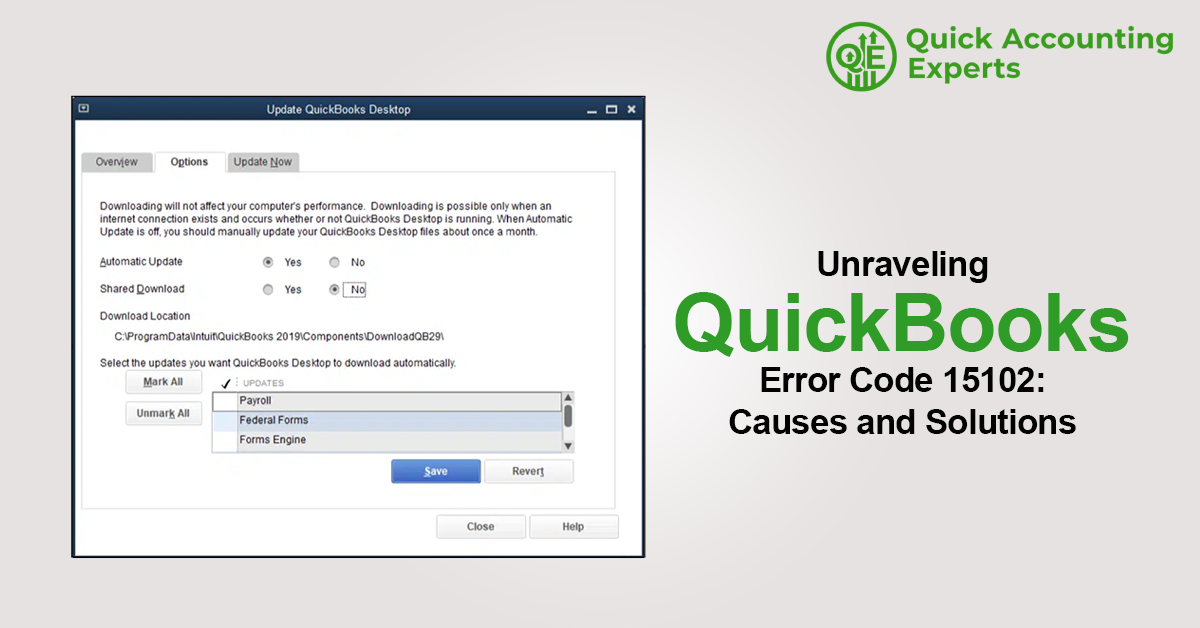
QuickBooks is a powerful accounting software used by millions of small and medium-sized businesses. While it simplifies accounting tasks, users may occasionally encounter technical errors. One such issue is QuickBooks Error Code 15102, which typically appears during software updates or payroll updates. This error can prevent users from downloading critical updates, affecting payroll processing and system performance. In this guide, we are unraveling QuickBooks Error Code 15102, explaining its causes and providing effective solutions to resolve it.
What Is QuickBooks Error Code 15102?
QuickBooks Error Code 15102 usually occurs when users attempt to download or install QuickBooks or payroll updates. The error message may indicate that the update cannot be completed due to incorrect settings or blocked permissions. Since regular updates are essential for compliance and performance, resolving this error promptly is important.
Common Symptoms of QuickBooks Error Code 15102
You may be experiencing QuickBooks Error Code 15102 if you notice the following symptoms:
- Unable to download QuickBooks updates
- Payroll update fails repeatedly
- Error message 15102 appears on screen
- QuickBooks freezes during update
- Software performance slows down
Identifying these symptoms early can help prevent further complications.
Causes of QuickBooks Error Code 15102
Understanding the root cause makes troubleshooting easier. Below are the most common reasons behind this error:
Incorrect Internet Explorer Settings
QuickBooks Desktop uses Internet Explorer settings to establish secure connections. Incorrect settings may block updates.
Invalid Digital Signature Certificate
If the digital signature certificate is damaged or missing, QuickBooks cannot verify update files.
User Account Control (UAC) Restrictions
UAC settings may prevent QuickBooks from accessing required system files.
Incorrect Shared Download Location
If QuickBooks is installed in multi-user mode and the shared location is incorrect, updates may fail.
Firewall or Security Software Blocking Updates
Security applications may restrict QuickBooks from accessing Intuit servers.
Solutions to Fix QuickBooks Error Code 15102
Below are step-by-step solutions to resolve QuickBooks Error Code 15102 effectively.
Solution 1: Verify Internet Explorer Settings
QuickBooks relies on Internet Explorer, even if you use another browser.
Steps:
- Open Internet Explorer
- Go to Tools > Internet Options
- Select the Security tab
- Set security level to Medium-High
- Click Apply and OK
Restart QuickBooks and try updating again.
Solution 2: Install Digital Signature Certificate
Installing the digital signature ensures file authenticity.
Steps:
- Go to the QuickBooks installation folder
- Right-click QBW32.exe
- Select Properties > Digital Signatures
- Click Intuit Inc. > Details
- Click View Certificate > Install Certificate
- Follow on-screen instructions and restart
Solution 3: Run QuickBooks as Administrator
Administrative privileges allow QuickBooks to make system-level changes.
Steps:
- Right-click the QuickBooks Desktop icon
- Select Run as administrator
- Download the update again
Solution 4: Turn Off User Account Control (UAC)
Disabling UAC temporarily may fix the issue.
Steps:
- Open Control Panel
- Select User Accounts
- Click Change User Account Control settings
- Move the slider to Never notify
- Restart your system
After updating, you can turn UAC back on.
Solution 5: Correct Shared Download Location
For multi-user environments:
Steps:
- Open QuickBooks
- Go to Edit > Preferences > Shared Company Preferences
- Select Company File Location
- Verify the correct shared folder
- Save changes
Solution 6: Configure Firewall and Security Software
Ensure QuickBooks is allowed through the firewall.
Steps:
- Add QuickBooks to firewall exceptions
- Allow ports 80 and 443
- Disable antivirus temporarily while updating
Re-enable security software afterward.
Solution 7: Update QuickBooks Manually
Manual updates bypass connection issues.
Steps:
- Close QuickBooks
- Download the latest update from Intuit’s website
- Run the installer
- Restart your system
Solution 8: Use QuickBooks Tool Hub
QuickBooks Tool Hub fixes common errors automatically.
Steps:
- Download QuickBooks Tool Hub
- Open it and select Program Problems
- Run Quick Fix My Program
- Restart QuickBooks
Preventing QuickBooks Error Code 15102 in the Future
To avoid this error:
- Keep QuickBooks updated regularly
- Use stable internet connections
- Maintain correct system permissions
- Keep firewall settings updated
- Avoid force-closing QuickBooks during updates
Proactive maintenance reduces the chances of update-related errors.
When to Contact QuickBooks Support
If the error persists even after trying all solutions, you may need professional assistance. Contact QuickBooks Support if:
- Payroll updates are critical
- Error continues despite troubleshooting
- Company file integrity is affected
Expert support ensures faster and safer resolution.
Conclusion
Unraveling QuickBooks Error Code 15102: Causes and Solutions reveals that the issue is mostly related to permissions, security settings, or configuration errors. By following the step-by-step solutions outlined above—such as verifying Internet Explorer settings, installing digital certificates, adjusting firewall permissions, and using QuickBooks Tool Hub—you can resolve this error effectively. Timely troubleshooting ensures uninterrupted payroll processing and smooth QuickBooks performance.