QuickBooks is an indispensable tool for millions of businesses around the world. Its power to streamline accounting and financial workflows is unmatched. Yet, like any software, it’s not immune to hiccups. One such stubborn issue that users often encounter is QuickBooks Error Code 6000 77. In this comprehensive, human‑centered guide, we’ll walk through what this error means, why it appears, and how you can resolve it with practical, step‑by‑step solutions — explained in plain language.
What Is QuickBooks Error Code 6000‑77?
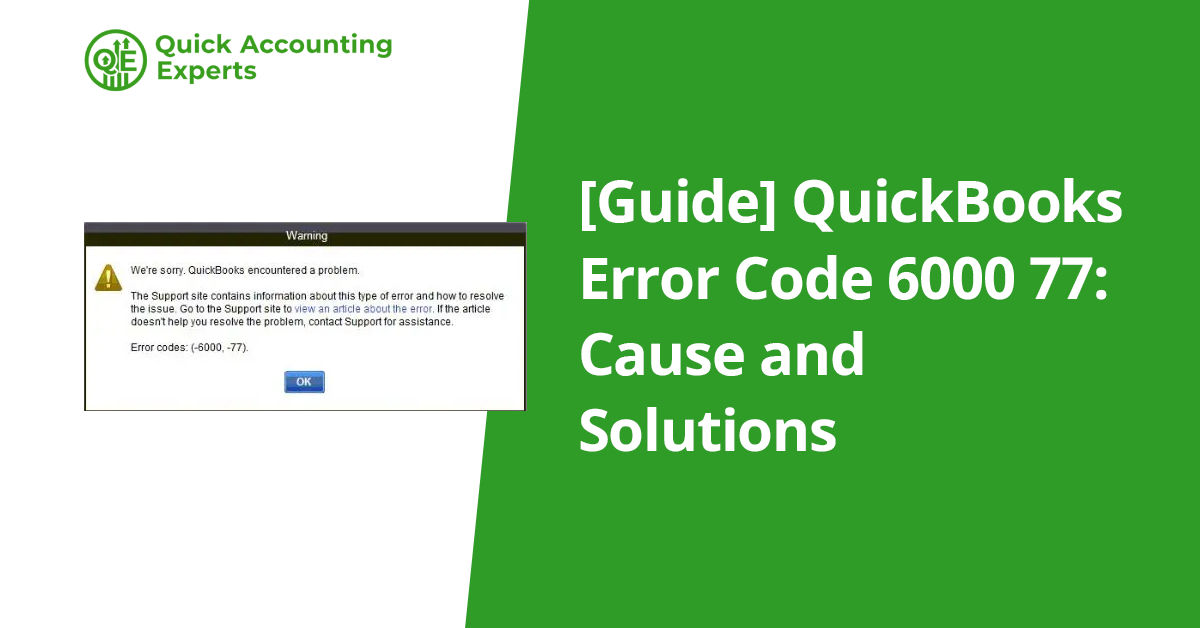
QuickBooks Error 6000‑77 typically shows up with a message like:
“We’re sorry. QuickBooks encountered a problem. Error codes: (-6000, -77).” QuickBooks
In essence, this error occurs when QuickBooks fails to access your company file — usually during opening, backing up, restoring, or switching to multi‑user mode. It can halt your work, disrupt team access, and lead to unnecessary stress if you’re unsure what’s going on.
Why This Error Happens — In Plain Terms
Understanding the root causes is critical before jumping into solutions. Error 6000‑77 stems from the software being unable to read or connect to the company file for several possible reasons:
1. File Path or Location Issues
If the QuickBooks company file (.QBW) is stored in a place that’s hard for QuickBooks to reach — such as a network location with incorrect access, an external drive, or a deeply nested folder path — it may fail to open the file.
2. Insufficient Permissions
Windows folders have security settings that control who can open or modify files. If these aren’t granted correctly for the user or for QuickBooks, the app won’t be able to access the file.
3. Corrupted Configuration Files
QuickBooks uses hidden configuration files (ND and TLG) to manage how it accesses company data in multi‑user environments. If these are corrupt, QuickBooks can get confused and throw an error. QuickBooks
4. Firewall or Security Software Blocks
Sometimes security software — firewalls and antivirus — incorrectly flag QuickBooks traffic as a threat, blocking access to portions of the network where the company file lives. QuickBooks
5. Network or Hosting Misconfigurations
In multi‑user setups, one computer typically acts as a “host” where the company file is stored. If hosting is set incorrectly on workstations or the network connection is unstable, QuickBooks can’t find or open the file.
Tried‑and‑Tested Solutions to Fix Error 6000‑77
Here’s a set of methods you can apply from simplest to more advanced. Try them one by one, and check whether QuickBooks starts working normally after each step.
1. Run QuickBooks as Administrator
This simple action often fixes access issues.
Close QuickBooks completely.
Right‑click the QuickBooks desktop icon.
Choose Run as Administrator.
Try opening your company file. QuickBooks
Why it works: Running with elevated permissions lets QuickBooks bypass some Windows restrictions.
2. Use the QuickBooks File Doctor Tool
QuickBooks provides a built‑in utility called File Doctor that can scan and repair company file issues.
Download and install QuickBooks Tool Hub if you don’t already have it.
Open the Tool Hub app.
Go to Company File Issues.
Choose Run QuickBooks File Doctor.
Follow the prompts to scan and fix your file. QuickBooks
Why it works: File Doctor can automatically detect and resolve many file and network issues.
3. Rename the .ND and .TLG Configuration Files
These files help QuickBooks connect to the company file but aren’t essential — QuickBooks will recreate them.
Locate the folder that contains your company file.
Find files with the same name as your company file, but with extensions “.ND” and “.TLG”.
Example: companyname.qbw.nd and companyname.qbw.tlg
Right‑click each, choose Rename, and add .old at the end.
Example: companyname.qbw.nd.old QuickBooks
Reopen QuickBooks.
Why it works: Corrupt configuration files can prevent QuickBooks from accessing the actual data file.
4. Move the File to a Local Folder
Network drives, USB devices, or mapped drives can introduce access issues.
Copy your company file (.QBW) to your local hard drive — for example:
C:\Users\Public\Documents\Intuit\QuickBooks\Company Files
Why it works: Local file paths are more reliable and often bypass permissions or network blips.
5. Check Folder Permissions
Make sure your Windows user account has full control over the folder where the file is stored.
Right‑click the company file folder.
Select Properties > Security tab.
Ensure your user account is listed with Full Control.
Click Apply and OK. Cleverence
Why it works: If Windows restricts access, QuickBooks can’t open or modify the file.
6. Configure Firewall and Antivirus Settings
Security software can sometimes block QuickBooks processes.
Open your security or firewall software.
Add exceptions for:
QuickBooks program files
QuickBooks Database Server Manager
Required network ports
Temporarily disable real‑time scanning and test if the error persists. QuickBooks
Note: Only disable security software temporarily for testing. Don’t leave your system unprotected.
7. Open Using the UNC Path Instead of a Mapped Drive
Mapped network drives can confuse QuickBooks. Instead, navigate using the full network path (UNC).
Hold Ctrl and open QuickBooks as Administrator.
Go to File > Open or Restore Company.
Choose Open a company file.
In the location bar, enter the network path like:
\\ServerName\SharedFolder\YourFile.qbw QuickBooks
Why it works: UNC paths are more direct and less prone to permissions issues.
8. Recreate a Fresh Folder
If the folder itself is damaged:
Create a new folder on your C: drive.
Copy the company file into this new folder.
Set appropriate sharing permissions.
Open QuickBooks and try the file in the new location. QuickBooks
Why it works: Damaged or misconfigured directories can disrupt file access.
9. Reinstall or Clean Install QuickBooks
If all else fails, your QuickBooks installation might be corrupted.
Uninstall QuickBooks via Control Panel.
Reboot your system.
Reinstall QuickBooks from the official installer.
Update to the latest release and try again. QuickBooks
Warning: Always back up your company file before doing a reinstall.
Tips to Prevent Error 6000‑77 in Future
Always store company files in a stable, easy‑to‑access folder.
Keep regular backups in multiple locations (local + cloud).
Update QuickBooks and Windows frequently.
Avoid using external drives for active company files.
Set proper permissions for all users.
Final Thoughts
QuickBooks Error 6000‑77 can be frustrating, but with a structured approach, you can diagnose and fix it without losing valuable time. Most often, the issue is related to permissions, file location, or configuration corruption — all of which have straightforward remedies.
If after trying all solutions the issue still persists, it might be time to reach out to QuickBooks support or a qualified IT professional — especially if your data is critical to daily operations.
Let me know if you’d like help with specific steps like using the File Doctor tool or adjusting folder permissions!