
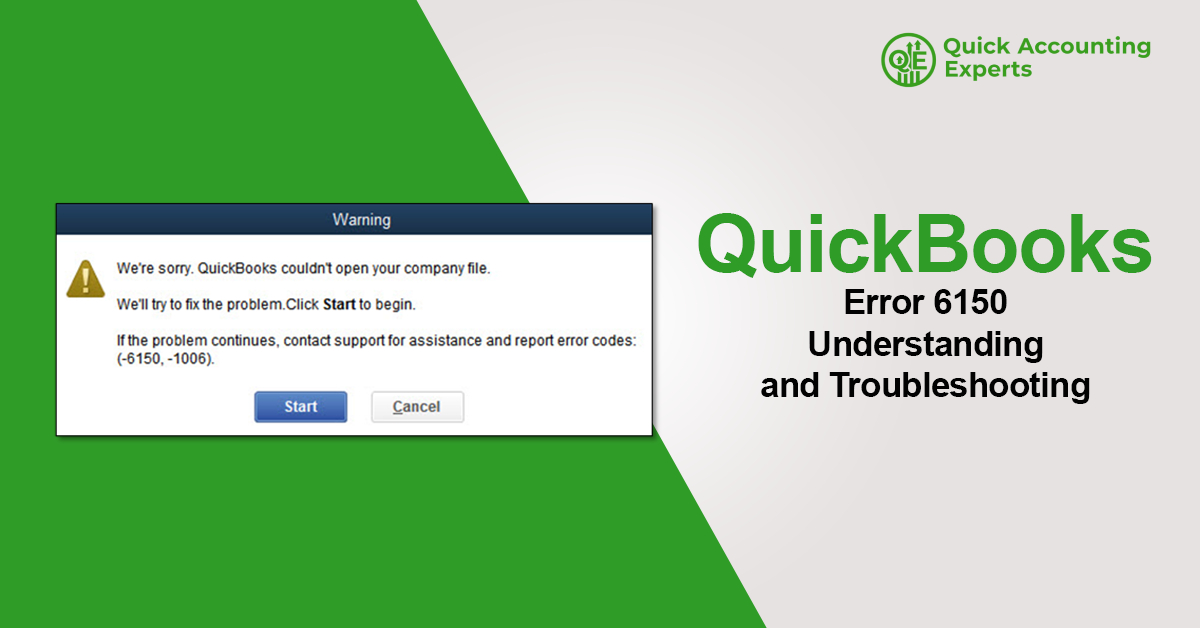
QuickBooks is a widely used accounting software that helps businesses manage finances, payroll, invoices, and taxes efficiently. However, like any software, QuickBooks can sometimes encounter errors that disrupt workflow. One such issue is QuickBooks Error 6150, which typically occurs when opening, creating, or restoring a company file. In this guide, we focus on QuickBooks Error 6150: understanding and troubleshooting, covering its causes, symptoms, and step-by-step solutions to help you resolve the issue effectively.
What Is QuickBooks Error 6150?
QuickBooks Error 6150 usually appears when the software fails to open or access a company file. The error message may indicate that QuickBooks cannot open the selected file or that there is an issue with the company file format. This error can affect productivity, especially if critical accounting data becomes temporarily inaccessible.
Common Symptoms of QuickBooks Error 6150
You may be facing QuickBooks Error 6150 if you notice one or more of the following signs:
- QuickBooks crashes while opening a company file
- Error message 6150 appears on screen
- Unable to create or restore a company file
- Company file opens as blank
- QuickBooks freezes or becomes unresponsive
Recognizing these symptoms early can help prevent data corruption.
Causes of QuickBooks Error 6150
Understanding why the error occurs is key to effective troubleshooting. Common causes include:
Corrupted Company File
Damage to the company file due to improper shutdowns or system crashes can trigger Error 6150.
Incorrect File Extension
QuickBooks company files must have the correct extension (.QBW). Incorrect or changed extensions can cause this error.
Malware or Virus Infection
Malicious software can corrupt QuickBooks files or block access.
Improper Installation of QuickBooks
Incomplete or faulty installation may prevent QuickBooks from reading company files properly.
Opening a Non-QuickBooks File
Attempting to open unsupported file formats in QuickBooks can result in Error 6150.
Solutions to Fix QuickBooks Error 6150
Below are proven solutions to resolve QuickBooks Error 6150 step by step.
Solution 1: Verify the Company File Extension
Ensure the file you are opening has the correct extension.
Steps:
- Locate the company file
- Right-click and select Properties
- Confirm the file extension is .QBW
- Rename the file if necessary
Avoid opening files with extensions like .ND, .TLG, or .QBA.
Solution 2: Open the Company File from Within QuickBooks
Instead of double-clicking the file, open it directly from QuickBooks.
Steps:
- Open QuickBooks Desktop
- Go to File > Open or Restore Company
- Select Open a company file
- Browse and open the file
This helps bypass file association issues.
Solution 3: Restore a Backup Company File
If the main file is corrupted, restoring a backup may resolve the issue.
Steps:
- Open QuickBooks
- Go to File > Open or Restore Company
- Select Restore a backup copy
- Choose a recent backup file (.QBB)
- Follow on-screen instructions
Always restore the backup to a new location.
Solution 4: Run QuickBooks Tool Hub
QuickBooks Tool Hub can diagnose and repair common file-related issues.
Steps:
- Download and install QuickBooks Tool Hub
- Open the tool and select Company File Issues
- Run QuickBooks File Doctor
- Allow the tool to scan and repair the file
Restart QuickBooks after completion.
Solution 5: Scan Your System for Malware
Viruses or malware can damage QuickBooks files.
Steps:
- Run a full system antivirus scan
- Remove any detected threats
- Restart your computer
After cleaning the system, try opening the company file again.
Solution 6: Reinstall QuickBooks Desktop
If the issue is due to faulty installation, reinstalling QuickBooks may help.
Steps:
- Uninstall QuickBooks from Control Panel
- Restart your system
- Download the latest QuickBooks version
- Install and activate the software
Ensure all updates are installed after reinstallation.
Solution 7: Create a New Company File
If none of the above solutions work, create a new file to test QuickBooks functionality.
Steps:
- Open QuickBooks
- Select Create a new company
- Enter sample business details
- Save and open the file
If the new file opens successfully, the old file may be severely damaged.
Preventing QuickBooks Error 6150 in the Future
To minimize the risk of encountering Error 6150:
- Create regular company file backups
- Avoid force-closing QuickBooks
- Keep antivirus software updated
- Install QuickBooks updates promptly
- Use stable power and network connections
Preventive maintenance plays a key role in avoiding file corruption.
When Should You Seek Professional Help?
Contact QuickBooks support or a certified professional if:
- The company file contains critical data
- Backup files are also corrupted
- Error 6150 persists after troubleshooting
Professional assistance ensures secure data recovery.
Conclusion
QuickBooks Error 6150: understanding and troubleshooting requires identifying the root cause—whether it’s file corruption, incorrect extensions, malware, or installation issues. By following the step-by-step solutions outlined above, users can restore access to their company files and resume normal accounting operations. Regular backups, system maintenance, and proper QuickBooks usage are essential to prevent this error in the future.