Tag: QuickBooks Error Code

  • QuickBooks Error 6150: Understanding and Troubleshooting

    QuickBooks Error 6150: Understanding and Troubleshooting

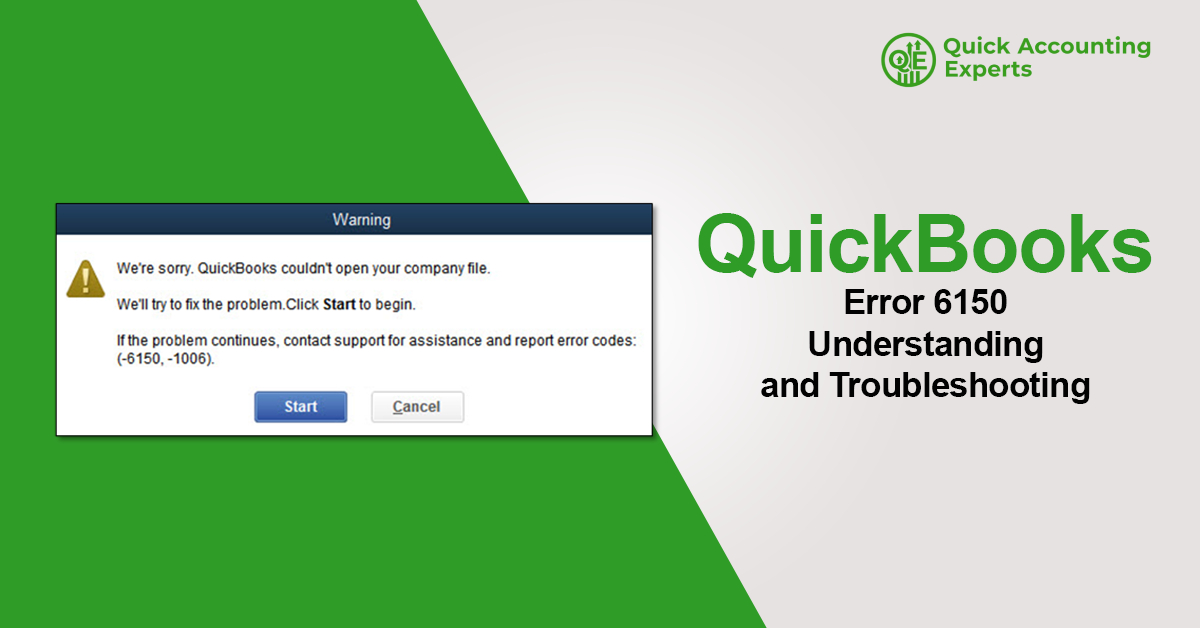
    QuickBooks is a widely used accounting software that helps businesses manage finances, payroll, invoices, and taxes efficiently. However, like any software, QuickBooks can sometimes encounter errors that disrupt workflow. One such issue is QuickBooks Error 6150, which typically occurs when opening, creating, or restoring a company file. In this guide, we focus on QuickBooks Error 6150: understanding and troubleshooting, covering its causes, symptoms, and step-by-step solutions to help you resolve the issue effectively.


    What Is QuickBooks Error 6150?


    QuickBooks Error 6150 usually appears when the software fails to open or access a company file. The error message may indicate that QuickBooks cannot open the selected file or that there is an issue with the company file format. This error can affect productivity, especially if critical accounting data becomes temporarily inaccessible.


    Common Symptoms of QuickBooks Error 6150


    You may be facing QuickBooks Error 6150 if you notice one or more of the following signs:

    • QuickBooks crashes while opening a company file
    • Error message 6150 appears on screen
    • Unable to create or restore a company file
    • Company file opens as blank
    • QuickBooks freezes or becomes unresponsive

    Recognizing these symptoms early can help prevent data corruption.


    Causes of QuickBooks Error 6150


    Understanding why the error occurs is key to effective troubleshooting. Common causes include:


    Corrupted Company File

    Damage to the company file due to improper shutdowns or system crashes can trigger Error 6150.


    Incorrect File Extension

    QuickBooks company files must have the correct extension (.QBW). Incorrect or changed extensions can cause this error.


    Malware or Virus Infection

    Malicious software can corrupt QuickBooks files or block access.


    Improper Installation of QuickBooks

    Incomplete or faulty installation may prevent QuickBooks from reading company files properly.


    Opening a Non-QuickBooks File

    Attempting to open unsupported file formats in QuickBooks can result in Error 6150.


    Solutions to Fix QuickBooks Error 6150

    Below are proven solutions to resolve QuickBooks Error 6150 step by step.


    Solution 1: Verify the Company File Extension

    Ensure the file you are opening has the correct extension.

    Steps:

    1. Locate the company file
    2. Right-click and select Properties
    3. Confirm the file extension is .QBW
    4. Rename the file if necessary

    Avoid opening files with extensions like .ND, .TLG, or .QBA.


    Solution 2: Open the Company File from Within QuickBooks

    Instead of double-clicking the file, open it directly from QuickBooks.

    Steps:

    1. Open QuickBooks Desktop
    2. Go to File > Open or Restore Company
    3. Select Open a company file
    4. Browse and open the file

    This helps bypass file association issues.


    Solution 3: Restore a Backup Company File

    If the main file is corrupted, restoring a backup may resolve the issue.

    Steps:

    1. Open QuickBooks
    2. Go to File > Open or Restore Company
    3. Select Restore a backup copy
    4. Choose a recent backup file (.QBB)
    5. Follow on-screen instructions

    Always restore the backup to a new location.


    Solution 4: Run QuickBooks Tool Hub

    QuickBooks Tool Hub can diagnose and repair common file-related issues.

    Steps:

    1. Download and install QuickBooks Tool Hub
    2. Open the tool and select Company File Issues
    3. Run QuickBooks File Doctor
    4. Allow the tool to scan and repair the file

    Restart QuickBooks after completion.


    Solution 5: Scan Your System for Malware

    Viruses or malware can damage QuickBooks files.

    Steps:

    • Run a full system antivirus scan
    • Remove any detected threats
    • Restart your computer

    After cleaning the system, try opening the company file again.


    Solution 6: Reinstall QuickBooks Desktop

    If the issue is due to faulty installation, reinstalling QuickBooks may help.

    Steps:

    1. Uninstall QuickBooks from Control Panel
    2. Restart your system
    3. Download the latest QuickBooks version
    4. Install and activate the software

    Ensure all updates are installed after reinstallation.


    Solution 7: Create a New Company File

    If none of the above solutions work, create a new file to test QuickBooks functionality.

    Steps:

    1. Open QuickBooks
    2. Select Create a new company
    3. Enter sample business details
    4. Save and open the file

    If the new file opens successfully, the old file may be severely damaged.


    Preventing QuickBooks Error 6150 in the Future


    To minimize the risk of encountering Error 6150:

    • Create regular company file backups
    • Avoid force-closing QuickBooks
    • Keep antivirus software updated
    • Install QuickBooks updates promptly
    • Use stable power and network connections

    Preventive maintenance plays a key role in avoiding file corruption.


    When Should You Seek Professional Help?


    Contact QuickBooks support or a certified professional if:

    • The company file contains critical data
    • Backup files are also corrupted
    • Error 6150 persists after troubleshooting

    Professional assistance ensures secure data recovery.


    Conclusion


    QuickBooks Error 6150: understanding and troubleshooting requires identifying the root cause—whether it’s file corruption, incorrect extensions, malware, or installation issues. By following the step-by-step solutions outlined above, users can restore access to their company files and resume normal accounting operations. Regular backups, system maintenance, and proper QuickBooks usage are essential to prevent this error in the future.


  • Guide to Fix Issue QuickBooks Error Code -6000-832

    Guide to Fix Issue QuickBooks Error Code -6000-832

    QuickBooks is one of the most popular accounting software solutions globally, trusted by millions of small to medium-sized businesses. Despite its reliability, users may encounter errors that interrupt workflow. One such common error is QuickBooks Error Code -6000-832.

    This error typically occurs when trying to open a company file or during multi-user setup. If left unresolved, it can prevent users from accessing essential financial data and disrupt daily accounting operations.

    In this detailed guide, we will cover everything about QuickBooks Error -6000-832, including its causes, symptoms, step-by-step solutions, preventive measures, and FAQs. By the end of this article, you will be equipped to troubleshoot and prevent this error efficiently.


    What is QuickBooks Error Code -6000-832?

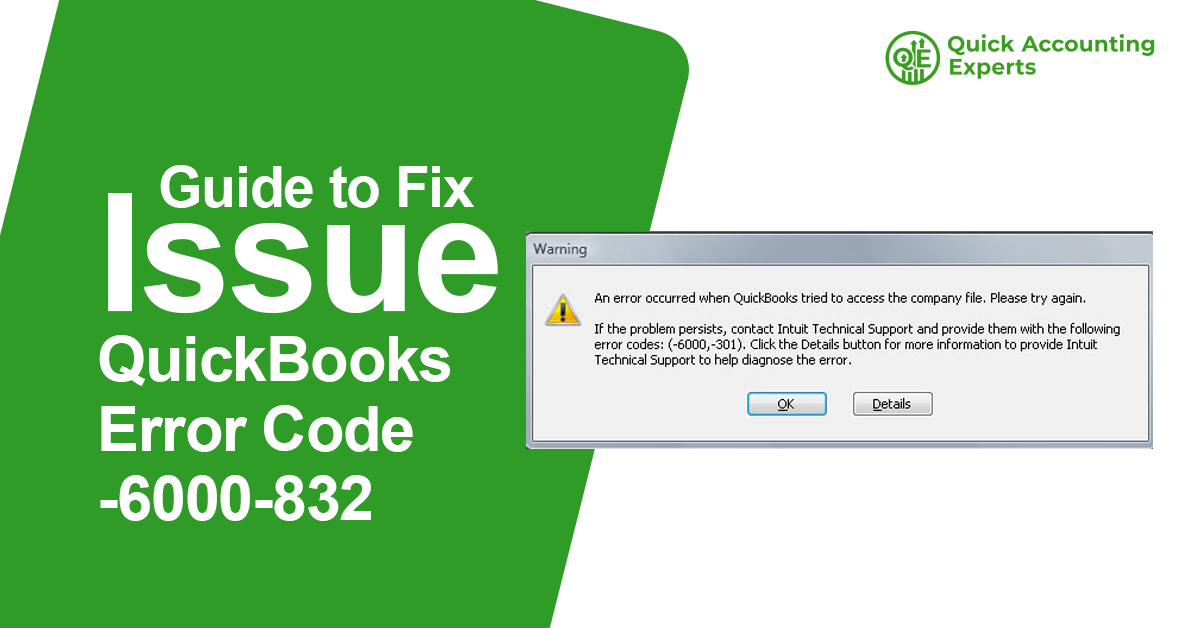
    QuickBooks Error -6000-832 is a company file-related error. It occurs when QuickBooks is unable to access a company file due to corruption, improper network setup, or file damage. The error is commonly seen in multi-user environments and can appear with messages such as:

    “An error occurred when QuickBooks tried to access the company file. [Error -6000-832]”

    This error is part of the -6000 series, which includes issues related to company files, data corruption, and network access problems. Resolving this error promptly is critical for ensuring business continuity.


    Symptoms of QuickBooks Error -6000-832

    Recognizing the signs of Error -6000-832 helps in early troubleshooting. Common symptoms include:

    1. QuickBooks crashes when opening a company file.
    2. Error message code -6000-832 is displayed.
    3. Users cannot open the company file in multi-user mode.
    4. QuickBooks becomes unresponsive during startup.
    5. Files may fail to sync across network drives.

    If you notice these issues, it indicates that your company file or network configuration may need attention.


    Causes of QuickBooks Error Code -6000-832

    Understanding the causes of this error allows you to apply the correct fix. Common causes include:

    1. Damaged or Corrupted Company File
      • The primary reason for this error is a corrupted .QBW file.
    2. Incorrect File Path
      • Moving a company file without updating the path in QuickBooks can trigger the error.
    3. Network Issues
      • Multi-user mode errors often occur due to improper network setup or blocked ports.
    4. Firewall or Security Settings
      • Firewalls may prevent QuickBooks from accessing the company file.
    5. Hosting Conflicts
      • Multiple systems hosting the company file can cause file access issues.
    6. Antivirus Software
      • Overly strict antivirus settings may block QuickBooks processes.


    Step-by-Step Solutions to Fix QuickBooks Error -6000-832

    Here’s a detailed troubleshooting guide to resolve QuickBooks Error Code -6000-832.


    Solution 1: Use QuickBooks File Doctor Tool

    The QuickBooks File Doctor is designed to repair company file and network-related issues.

    Steps:

    1. Download QuickBooks Tool Hub from the official Intuit website.
    2. Install and open the Tool Hub.
    3. Select Company File Issues.
    4. Click Run QuickBooks File Doctor.
    5. Select the affected company file.
    6. Enter QuickBooks admin credentials and run the scan.
    7. Wait for the tool to repair the file and try reopening QuickBooks.


    Solution 2: Move the Company File to a Local Drive

    Sometimes network paths cause errors. Moving the company file to a local system can resolve -6000-832.

    Steps:

    1. Close QuickBooks on all systems.
    2. Copy the .QBW file to the C: drive on your local computer.
    3. Open QuickBooks Desktop and navigate to the new file location.
    4. Try opening the file to check if the error persists.


    Solution 3: Verify Hosting Settings

    Incorrect multi-user hosting settings can trigger Error -6000-832.

    Steps:

    1. Open QuickBooks on the server system.
    2. Go to File > Utilities.
    3. If you see Stop Hosting Multi-User Access, click it.
    4. On workstations, go to File > Utilities and ensure Host Multi-User Access is enabled only on the server.
    5. Restart QuickBooks and attempt to open the company file.


    Solution 4: Rename the .ND and .TLG Files

    QuickBooks creates .ND (Network Data) and .TLG (Transaction Log) files for each company file. Renaming them forces QuickBooks to recreate these files.

    Steps:

    1. Navigate to the folder containing your company file.
    2. Locate files with the same name as your company file but with .ND and .TLG extensions.
    3. Right-click and rename them to .ND.old and .TLG.old.
    4. Open QuickBooks and try to access the company file.


    Solution 5: Check Firewall and Security Settings

    Firewall and antivirus software may block QuickBooks from accessing network files.

    Steps:

    1. Temporarily disable your firewall and antivirus.
    2. Add exceptions for QuickBooks executables:
      • QBW32.exe
      • QBDBMgrN.exe
      • QBDBMgr.exe
      • QBUpdate.exe
    3. Enable firewall/antivirus after testing.
    4. Try reopening the company file.


    Solution 6: Restore a Backup File

    If your company file is corrupted beyond repair, restoring a backup is the safest option.

    Steps:

    1. Locate the latest backup file (.QBB) of your company.
    2. Open QuickBooks and go to File > Open or Restore Company.
    3. Choose Restore a Backup Copy and click Next.
    4. Select Local Backup and browse to the backup location.
    5. Restore the file and check if QuickBooks opens successfully.


    Solution 7: Create a New Windows User

    User profile corruption can also trigger QuickBooks errors.

    Steps:

    1. Open Control Panel > User Accounts.
    2. Create a new Windows user with Admin rights.
    3. Log in to the new profile.
    4. Open QuickBooks and attempt to access the company file.


    Solution 8: Configure QuickBooks Database Server Manager

    For multi-user environments, QuickBooks Database Server Manager ensures proper file access.

    Steps:

    1. Open QuickBooks Database Server Manager on the server.
    2. Scan the folder containing your company file.
    3. Ensure the correct ports are open for QuickBooks.
    4. Restart all systems and check multi-user access.


    Solution 9: Reinstall QuickBooks

    If all else fails, reinstalling QuickBooks can repair installation issues causing the error.

    Steps:

    1. Backup all company files.
    2. Uninstall QuickBooks via Control Panel > Programs and Features.
    3. Download the latest QuickBooks installer from Intuit.
    4. Install using Run as Administrator.
    5. Activate the software and try opening the company file.


    Preventive Measures to Avoid Error -6000-832

    Once resolved, follow these best practices to prevent future occurrences:

    1. Regularly update QuickBooks Desktop to the latest version.
    2. Maintain backups of company files.
    3. Use correct hosting and multi-user configuration.
    4. Keep firewall and antivirus settings configured for QuickBooks.
    5. Avoid manual manipulation of network paths for company files.
    6. Use QuickBooks Tool Hub periodically to fix minor issues.


    QuickBooks Error -6000-832 FAQs


    Q1: What is QuickBooks Error Code -6000-832?

    A: It is a company file-related error that occurs when QuickBooks cannot access the company file due to corruption, network issues, or improper hosting setup.


    Q2: What causes QuickBooks Error -6000-832?

    A: Causes include damaged company files, incorrect file paths, network or multi-user configuration issues, firewall restrictions, and antivirus interference.


    Q3: Can I fix Error -6000-832 myself?

    A: Yes. Most users can fix it using QuickBooks File Doctor, renaming .ND and .TLG files, restoring backups, or configuring multi-user settings.


    Q4: Does Error -6000-832 affect all company files?

    A: No. It typically affects a specific company file. Other files remain unaffected unless network or software issues are widespread.


    Q5: How long does it take to fix QuickBooks Error -6000-832?

    A: Simple solutions like renaming files may take 10–15 minutes, while multi-user or reinstallation fixes may take 1–2 hours.


    Q6: Is QuickBooks Error -6000-832 dangerous for data?

    A: The error itself does not delete data, but corrupted files may cause data loss. Always maintain regular backups.


    Q7: How can I prevent QuickBooks Error -6000-832 in the future?

    A: Keep QuickBooks updated, configure network settings correctly, maintain backups, and regularly run QuickBooks File Doctor.


    Q8: Can firewall settings cause Error -6000-832?

    A: Yes. Firewalls or antivirus programs may block access to the company file, triggering this error.


    Conclusion

    QuickBooks Error Code -6000-832 is a common company file-related error that can interrupt business operations if not resolved. By following the step-by-step solutions outlined in this guide—including using QuickBooks File Doctor, renaming files, restoring backups, and configuring multi-user access—you can quickly restore access to your company file.

    Preventive measures, such as maintaining backups, keeping software updated, and configuring firewall and multi-user settings properly, are essential to avoid recurring issues. By implementing these practices, business owners and accountants can ensure smooth operation of QuickBooks Desktop and avoid costly disruptions.