
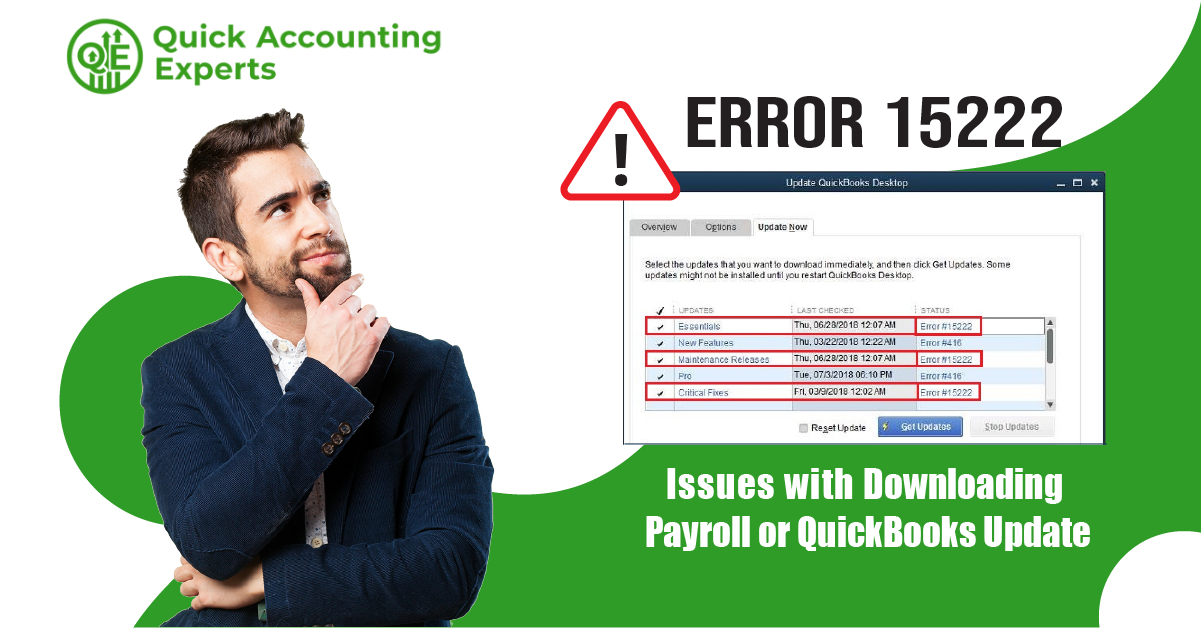
If you’ve ever tried to update QuickBooks or download the latest payroll updates and suddenly hit Error 15222, you’re not alone. This error tends to show up at the worst possible time—right before payroll runs, during tax season, or when you’re simply trying to keep your accounting software up to date.
While the message itself may look intimidating, Error 15222 is usually caused by something fairly manageable. The key is understanding why QuickBooks is blocking the update and how to remove that roadblock safely.
Let’s walk through what this error really means, why it happens, and how you can fix it without unnecessary stress.
What Is QuickBooks Error 15222, Really?
At its core, Error 15222 is an update verification problem.
When QuickBooks downloads an update—whether it’s a payroll tax table or a product update—it checks the file’s digital signature. This signature confirms the update came from Intuit and hasn’t been altered.
If QuickBooks cannot verify that signature, it stops the update and displays Error 15222.
In plain language:
QuickBooks doesn’t trust the file it just downloaded, so it refuses to install it.
Why This Error Deserves Immediate Attention
Some users try to ignore update errors and “deal with them later.” Unfortunately, that approach can backfire quickly with Error 15222.
Here’s why this issue matters:
Payroll tax tables may remain outdated
Tax calculations could be incorrect
Payroll submissions might be rejected
Compliance risks increase
Security updates don’t install
Certain QuickBooks features may stop working properly
In short, your software may continue running—but not correctly.
Common Reasons Error 15222 Occurs
Error 15222 doesn’t usually happen randomly. It’s almost always triggered by system-level restrictions or outdated settings.
1. Digital Signature Problems
QuickBooks relies on a valid Intuit digital certificate. If the certificate is missing, expired, or damaged, the update cannot be verified.
2. Internet Explorer Configuration Issues
Even if you use Chrome or Edge, QuickBooks still depends on Internet Explorer settings behind the scenes. Incorrect security or TLS settings can break update downloads.
3. Insufficient User Permissions
Running QuickBooks without administrator access can prevent updates from installing properly.
4. Antivirus or Firewall Interference
Security software may block QuickBooks from accessing Intuit’s servers, especially during downloads.
5. Corrupted QuickBooks Program Files
If core files are damaged, update components may fail verification.
6. Outdated Windows Certificates
Windows uses root certificates to validate secure downloads. If these are outdated, QuickBooks updates won’t authenticate.
Signs You’re Dealing with Error 15222
You might see this error directly, but sometimes the symptoms show up first:
Payroll updates stop unexpectedly
QuickBooks freezes during “Get Updates”
Update downloads complete but fail to install
Tax tables do not change after updating
Repeated error messages during updates
If any of these sound familiar, Error 15222 is likely the culprit.
How to Fix Error 15222 (Step-by-Step)
The solutions below are listed from simplest to more advanced. In many cases, you won’t need to try them all.
Step 1: Run QuickBooks as an Administrator
This alone resolves the issue for many users.
What to do:
Close QuickBooks completely
Right-click the QuickBooks icon
Select Run as administrator
Attempt the update again
This ensures QuickBooks has permission to install and verify update files.
Step 2: Check the Digital Signature Certificate
QuickBooks updates must be digitally signed by Intuit.
How to verify:
Open File Explorer
Go to the QuickBooks installation folder
(usually C:\Program Files\Intuit\QuickBooks)Locate QBW32.exe
Right-click → Properties
Open the Digital Signatures tab
Confirm Intuit Inc. is listed and the signature shows as valid
If the signature is missing or invalid, QuickBooks may need repair.
Step 3: Fix Internet Explorer Settings
This step is critical—even if you never use Internet Explorer.
Steps:
Open Internet Explorer
Click Tools → Internet Options
Go to the Security tab
Set the level to Medium-High
Open the Advanced tab
Make sure TLS 1.2 is checked
Click Apply and restart your computer
This restores the secure connection QuickBooks needs for updates.
Step 4: Temporarily Disable Antivirus and Firewall
Sometimes security software blocks QuickBooks without warning.
Try this:
Temporarily disable antivirus and firewall protection
Open QuickBooks and download the update
Re-enable protection immediately after
If this works, add QuickBooks to your antivirus and firewall exception list.
Step 5: Update Windows Completely
Outdated Windows components can break digital verification.
What to do:
Open Windows Update
Install all recommended and optional updates
Restart your system
This refreshes root certificates and system security components.
Step 6: Repair QuickBooks Desktop
If program files are damaged, repairing QuickBooks can restore missing or corrupted components.
Steps:
Open Control Panel
Select Programs and Features
Choose QuickBooks Desktop
Click Uninstall/Change
Select Repair
Follow the prompts
After the repair, restart your system and try updating again.
Step 7: Perform a Clean Install (If Needed)
If the error continues after all previous steps, a clean install may be required. This removes leftover corrupted files that a standard repair may miss.
Because this process involves reinstalling QuickBooks completely, it’s best done carefully—especially if your company files are large or stored on a network.
How to Avoid Error 15222 Going Forward
Once resolved, a few simple habits can help prevent the error from returning:
Always open QuickBooks as administrator
Keep Windows fully updated
Avoid interrupting updates once started
Use a stable internet connection
Keep antivirus exceptions updated
Perform routine QuickBooks maintenance
A little prevention goes a long way.
When It’s Time to Call a Professional
You may want expert help if:
The error keeps returning
Payroll deadlines are at risk
Multiple update errors appear
You’re using QuickBooks in a networked environment
You’re unsure about reinstalling software safely
In these cases, professional support can save time, prevent data loss, and reduce frustration.
Final Thoughts
Error 15222 isn’t a system failure—it’s a trust issue between QuickBooks and your computer. Once that trust is restored through proper settings, permissions, and certificates, updates usually work without trouble.
The key is not to panic, not to rush, and not to ignore the problem. With the right steps, Error 15222 can be resolved permanently, keeping your payroll accurate and your QuickBooks system running smoothly.