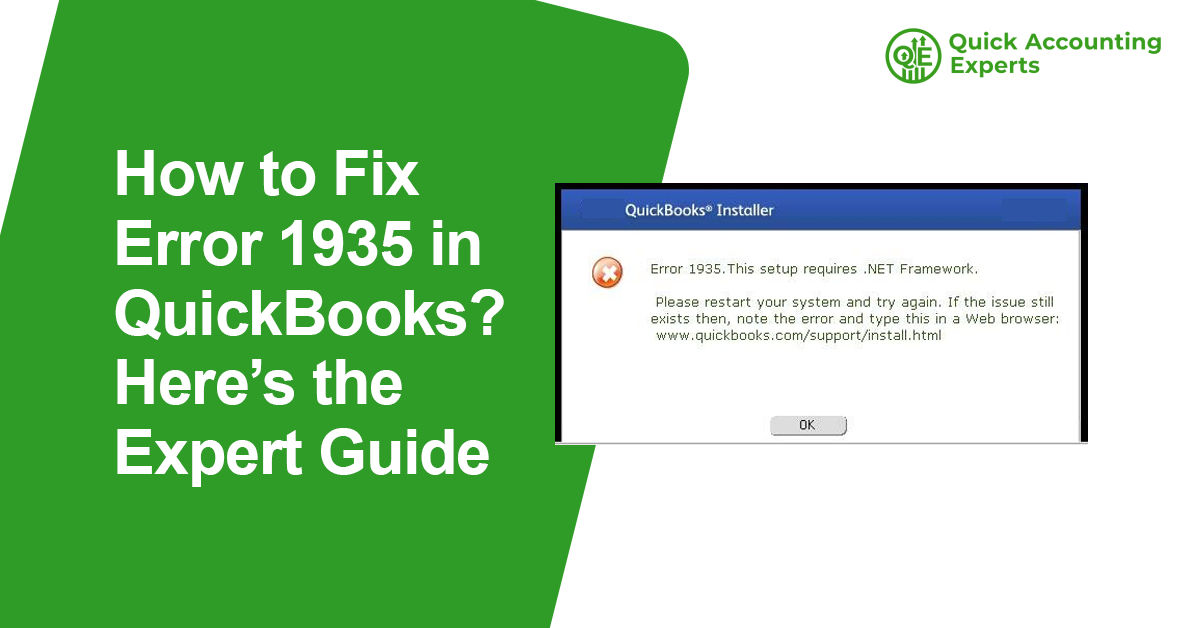
QuickBooks is one of the most trusted accounting software solutions for small and medium-sized businesses. However, like any complex application, it isn’t completely free from technical issues. One of the most frustrating problems users encounter during installation or update is QuickBooks Error 1935.
If you’re seeing this error, you’re not alone—and the good news is that it can be fixed.
In this comprehensive expert guide, we’ll explain what QuickBooks Error 1935 is, why it occurs, and how to fix it step by step. This blog is written to help both beginners and advanced users resolve the issue safely without risking data or system stability.
What Is QuickBooks Error 1935?
QuickBooks Error 1935 typically appears when you’re trying to:
- Install QuickBooks Desktop
- Update an existing QuickBooks version
- Install Microsoft .NET Framework components required by QuickBooks
The error message usually looks something like this:
“Error 1935: An error occurred during the installation of assembly component…”
This error prevents QuickBooks from installing properly and may cause the installation to roll back or fail completely.
Why Is Error 1935 a Serious Issue?
QuickBooks relies heavily on Microsoft components, especially:
- Microsoft .NET Framework
- MSXML
- Microsoft Visual C++ Redistributables
When these components fail to install or function correctly, QuickBooks cannot run as intended. Error 1935 is often a sign of system-level conflicts, which means ignoring it can lead to repeated installation failures or performance problems later.
Common Causes of QuickBooks Error 1935
Understanding the root cause is essential before attempting any fix. Below are the most common reasons why Error 1935 occurs:
- Damaged or Corrupt Microsoft .NET Framework
QuickBooks requires a healthy .NET Framework. If it’s corrupted or outdated, installation will fail.
- Windows System File Corruption
Missing or damaged Windows system files can interfere with QuickBooks installation processes.
- Incomplete Windows Updates
Outdated Windows components often conflict with QuickBooks dependencies.
- Antivirus or Firewall Interference
Security software may mistakenly block QuickBooks installation files.
- Issues with Microsoft Visual C++ Components
QuickBooks uses Visual C++ libraries that must be installed correctly.
- Insufficient Administrative Permissions
Installing QuickBooks without admin rights can cause assembly registration failures.
Symptoms of QuickBooks Error 1935
You might be dealing with Error 1935 if you notice:
- Installation freezes or rolls back
- Error message appears mid-installation
- QuickBooks fails to launch after installation
- Windows Installer crashes
- Repeated installation attempts fail
Before You Start Fixing Error 1935 (Important Checklist)
Before applying solutions, follow these precautions:
- ✔ Log in as Windows Administrator
- ✔ Back up important data
- ✔ Close all running applications
- ✔ Temporarily disable antivirus software
- ✔ Ensure a stable internet connection
Solution 1: Install QuickBooks Using Selective Startup (Highly Recommended)
This method prevents third-party applications from interfering with the installation.
Steps to Perform Selective Startup:
- Press Windows + R, type msconfig, and press Enter
- Go to the General tab
- Select Selective startup
- Uncheck Load startup items
- Go to the Services tab
- Check Hide all Microsoft services
- Click Disable all
- Restart your computer
- Install QuickBooks again
After installation, return to Normal startup.
Solution 2: Repair or Reinstall Microsoft .NET Framework
Since Error 1935 is often linked to .NET Framework issues, repairing it can resolve the problem.
Steps to Repair .NET Framework:
- Open Control Panel
- Click Programs and Features
- Select Turn Windows features on or off
- Uncheck .NET Framework
- Restart your system
- Re-enable .NET Framework
- Restart again
If the issue persists, reinstall the latest version of .NET Framework compatible with your Windows version.
Solution 3: Run the QuickBooks Install Diagnostic Tool
Intuit provides a specialized tool to fix installation-related issues automatically.
How to Use It:
- Download QuickBooks Tool Hub
- Install and open it
- Go to Installation Issues
- Click QuickBooks Install Diagnostic Tool
- Let the tool complete the process
- Restart your computer
This tool repairs .NET Framework, MSXML, and C++ issues simultaneously.
Solution 4: Update Windows to the Latest Version
Outdated Windows components can trigger Error 1935.
Steps:
- Press Windows + I
- Go to Update & Security
- Click Check for updates
- Install all available updates
- Restart your system
Once Windows is updated, reinstall QuickBooks.
Solution 5: Disable Antivirus and Firewall Temporarily
Some security programs block QuickBooks installation files.
Steps:
- Temporarily disable antivirus software
- Turn off Windows Firewall
- Install QuickBooks
- Re-enable security software after installation
⚠️ Important: Never keep antivirus disabled permanently.
Solution 6: Repair Microsoft Visual C++ Redistributables
QuickBooks requires multiple Visual C++ packages.
Steps:
- Open Programs and Features
- Locate Microsoft Visual C++ Redistributable
- Click Repair
- Repeat for all versions
- Restart your computer
Solution 7: Use System File Checker (SFC Scan)
Corrupt Windows files can cause Error 1935.
Steps:
- Open Command Prompt as Administrator
- Type:
- sfc /scannow
- Press Enter
- Wait for the scan to complete
- Restart your system
Solution 8: Install QuickBooks in a New Windows User Account
If your user profile is corrupted, QuickBooks may not install properly.
Steps:
- Create a new Windows admin account
- Log into the new account
- Install QuickBooks
- Check if the error is resolved
Advanced Troubleshooting (For Persistent Error 1935)
If none of the above solutions work:
- Perform a clean uninstall of QuickBooks
- Use Windows Event Viewer to identify installation conflicts
- Repair Windows Installer service
- Contact certified QuickBooks support professionals
How to Prevent QuickBooks Error 1935 in the Future
Prevention is better than cure. Follow these tips:
- Keep Windows updated regularly
- Install QuickBooks as Administrator
- Avoid force-closing installations
- Maintain system health with disk cleanup
- Keep Microsoft components updated
Frequently Asked Questions (FAQs)
Is QuickBooks Error 1935 a virus?
No, it’s a system installation error related to Windows components.
Can I fix Error 1935 without reinstalling QuickBooks?
Yes, many users resolve it by repairing .NET Framework or using the Install Diagnostic Tool.
Does Error 1935 affect QuickBooks data?
No, it only affects installation—not your company files.
Final Thoughts: Fixing QuickBooks Error 1935 the Right Way
QuickBooks Error 1935 may look intimidating, but it’s completely fixable with the right approach. Most cases are resolved by repairing Microsoft components, using selective startup, or running Intuit’s diagnostic tools.
If the error continues despite all troubleshooting steps, it’s best to seek help from QuickBooks-certified experts to avoid system damage or prolonged downtime.