
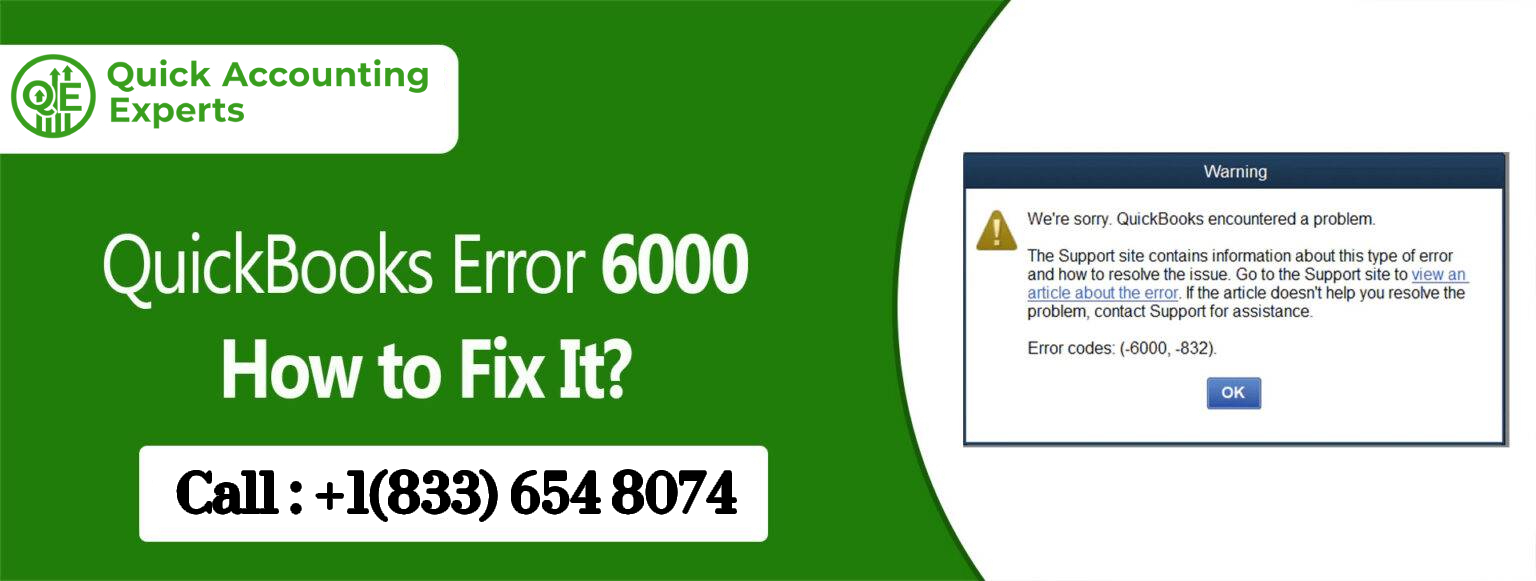
How to Fix QuickBooks Error 6000
Introduction
Encountering QuickBooks Error 6000 can be stressful, especially when you’re trying to complete invoices, payroll, or tax reports. This error occurs when QuickBooks cannot access your company file, usually due to network issues, file corruption, or improper permissions.
But don’t worry—QuickBooks Error 6000 is fixable. This guide provides human-friendly, step-by-step solutions to help you get back to work quickly and safely.
By the end of this guide, you’ll not only fix the error but also learn how to prevent it from happening again, saving time and frustration.
What is QuickBooks Error 6000?
QuickBooks Error 6000 occurs when the software cannot open or access your company file. The error may display messages like:
“An error occurred when QuickBooks tried to access the company file.”
It can appear in multiple scenarios:
- Opening a company file from a network drive
- Restoring a backup of a company file
- After moving or renaming a company file
- During QuickBooks updates or upgrades
Common causes include:
- Corrupted company file (.QBW)
- Network issues in multi-user mode
- Firewall or antivirus blocking QuickBooks
- Insufficient folder permissions
- Unsupported hosting setup for multiple company files
Understanding these causes helps you choose the right solution quickly
Signs You’re Experiencing QuickBooks Error 6000
You may encounter QuickBooks Error 6000 if:
- QuickBooks cannot open your company file
- The error appears on multiple computers in your network
- Your company file seems corrupted or inaccessible
- You recently restored a backup or moved your company file
Recognizing these signs early helps reduce downtime and prevents unnecessary troubleshooting.
Quick Preparations Before Fixing Error 6000
Before you start, take these precautions:
- Backup your company file: This is the safest first step.
- Update QuickBooks: Ensure you’re using the latest version.
- Check file location: Make sure the company file is stored on a reliable drive.
- Temporarily disable antivirus/firewall: This prevents accidental blocking of QuickBooks.
- Verify folder permissions: Ensure you have full access to the folder containing the company file.
These steps make troubleshooting safer and more efficient.
Step-by-Step Solutions to Fix QuickBooks Error 6000
Here’s how to resolve QuickBooks Error 6000 effectively:
Solution 1: Use QuickBooks File Doctor
- Download and install the QuickBooks Tool Hub from the official Intuit website.
- Open Tool Hub → Select Company File Issues → Click Run QuickBooks File Doctor.
- Select your company file and click Check your file.
- Enter your QuickBooks admin password and let the tool run.
Tip: This tool automatically repairs most file corruption and network-related issues.
Solution 2: Restore a Backup File
- Open QuickBooks → File → Open or Restore Company.
- Select Restore a backup copy → Click Next.
- Choose your backup file (.QBB) and restore it to the desired location.
Tip: Keep at least two backup versions to avoid data loss.
Solution 3: Move the Company File Locally
- Copy your company file from the network drive to your local C: drive.
- Open QuickBooks and try accessing the file.
Why it works: Network issues or permissions often cause Error 6000. Opening the file locally bypasses these problems.
Solution 4: Verify Folder Permissions
- Navigate to the folder containing your company file.
- Right-click → Properties → Security tab.
- Ensure your user account has Full Control permissions.
- Apply changes and try opening QuickBooks again.
Tip: For multi-user setups, ensure all users have full control.
Solution 5: Configure Firewall and Antivirus
- Temporarily disable your firewall and antivirus, then try opening QuickBooks.
- If the error resolves, add QuickBooks exceptions in your firewall/antivirus settings.
Why it works: Security software can block QuickBooks from accessing the company file.
Solution 6: Rename .ND and .TLG Files
- Go to the folder containing your company file.
- Find files with the same name as your company file but with .ND and .TLG extensions.
- Right-click and rename them by adding .old at the end.
- Open QuickBooks again.
Why it works: These files can sometimes become corrupted, preventing access. QuickBooks will recreate them automatically.
Additional Preventive Measures
- Store company files on reliable, local drives or stable servers.
- Maintain weekly backups both locally and on a secure cloud service.
- Keep QuickBooks and Windows up-to-date.
- Use single-user mode for troubleshooting network errors.
- Monitor your network stability before opening files in multi-user mode.
- Run QuickBooks File Doctor periodically to catch hidden issues.
These small steps save hours of troubleshooting and prevent unnecessary stress.
Real-Life Scenarios of Error 6000
Scenario 1: A small retail business tried opening a restored backup from the cloud. The file wouldn’t open due to network latency and folder permission issues. Using the QuickBooks File Doctor and verifying folder permissions resolved the issue within 20 minutes.
Scenario 2: A consulting firm faced Error 6000 after moving their company file to a new server. Renaming the .ND and .TLG files and configuring firewall exceptions allowed the software to access the company file successfully.
Key takeaway: Most QuickBooks Error 6000 cases are solvable using structured troubleshooting steps combined with preventive measures.
Frequently Asked Questions (FAQ)
Q1: Can QuickBooks Error 6000 corrupt my company file?
A: The error itself usually prevents access but does not corrupt the file. Always back up files before troubleshooting.
Q2: Why does Error 6000 appear only on some computers?
A: Differences in network permissions, firewall settings, or user access rights can cause this.
Q3: Is QuickBooks Error 6000 specific to Desktop?
A: Yes. QuickBooks Online does not use local company files, so this error is unique to Desktop.
Q4: How can I prevent QuickBooks Error 6000?
A: Store files in reliable locations, maintain backups, ensure proper permissions, and keep software updated.
Q5: Can QuickBooks File Doctor fix all Error 6000 cases?
A: It resolves most file corruption and network-related issues. Persistent issues may require restoring a backup or verifying permissions.
Q6: What should I do if my company file is severely corrupted?
A: Use the backup file if available. If not, contact QuickBooks Support or a data recovery expert to safely recover your data.
Q7: How can multi-user mode trigger Error 6000?
A: Network configuration or server hosting issues can prevent multiple users from accessing the same file simultaneously, leading to Error 6000.
Conclusion
QuickBooks Error 6000 can be frustrating, but there are several methods you can try to fix it. If none of these methods work, you may need to contact QuickBooks customer support for further assistance. Remember to always back up your company files before making any changes to your QuickBooks software.
Source: Intuit